
Overview
If you bring videos into PathFactory through the Kaltura integration, you can now see detailed video performance data directly in PathFactory. The data comes from Kaltura Rich Media CMS analytics and is embedded in two places:
- Video Analytics in the Analytics section of the main navigation. This is a dashboard covering engagement of the videos in your PathFactory instance that came from Kaltura.
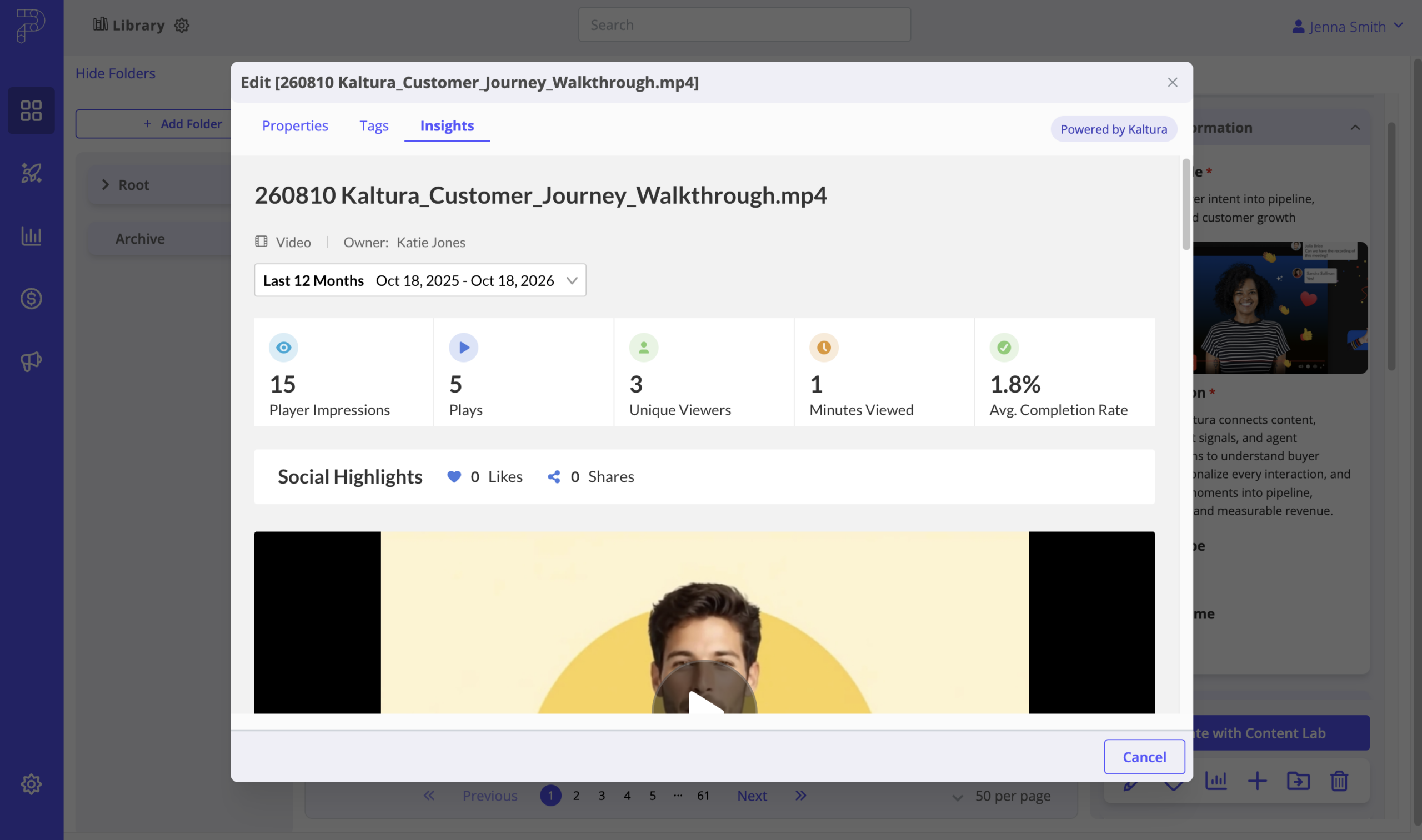
- Insights on an individual video in the Content Library. This shows analytics for that single video, labeled “Powered by Kaltura.”
Together, they let you move from a high-level view of video engagement to the performance of one specific video, all inside PathFactory.
Before you begin
To see Kaltura video analytics in PathFactory, make sure the following are in place:
- The Kaltura integration is enabled for your PathFactory instance and the videos you want to analyze were brought into the Content Library through that integration. Read how to Activate Kaltura Videos Across PathFactory Experiences for more information.
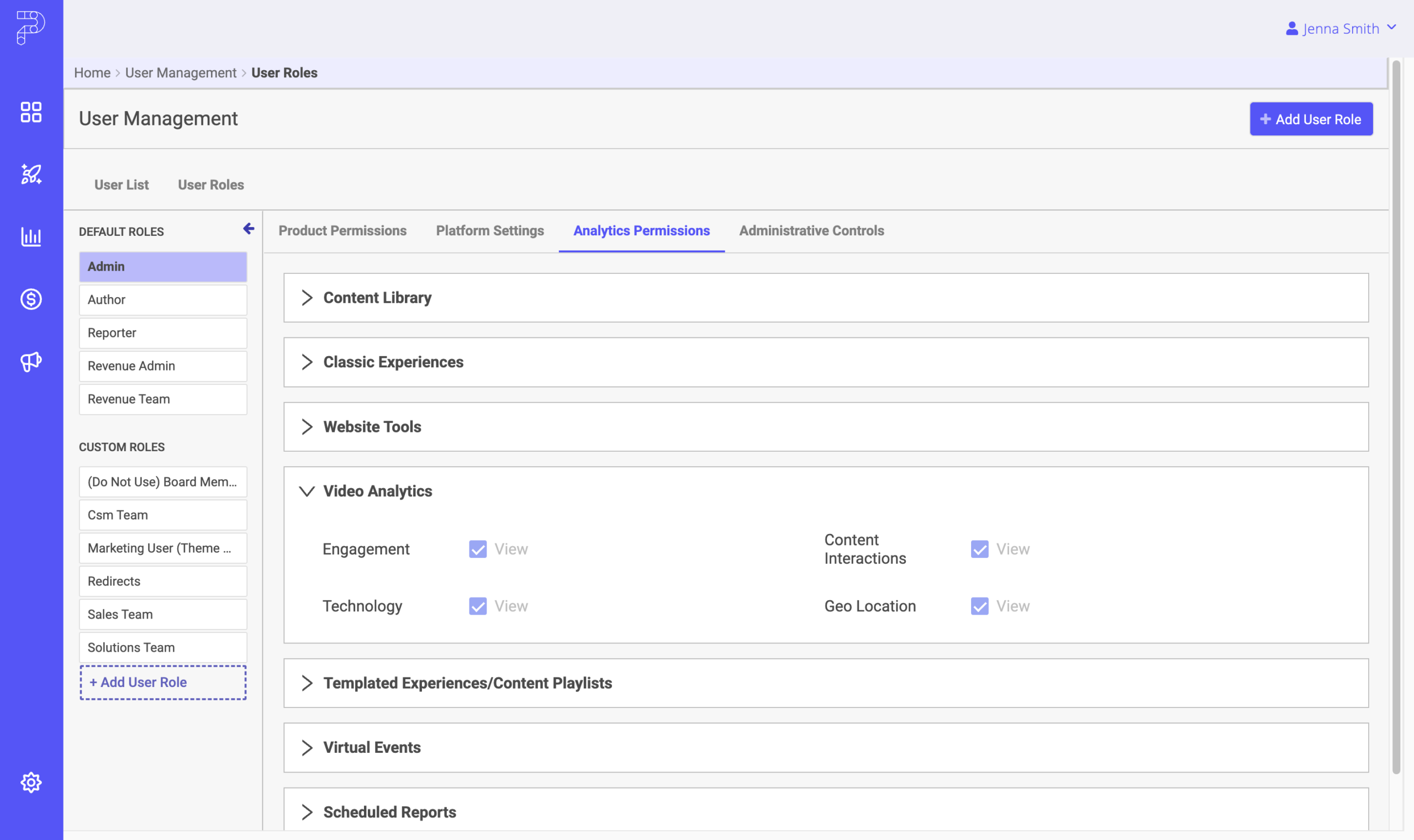
- Your user role has permission within PathFactory. Access is controlled by a Video Analytics setting on the user permissions page, in the same way as other PathFactory analytics. Contact your PathFactory administrator for access.
Video analytics dashboard
Open the dashboard
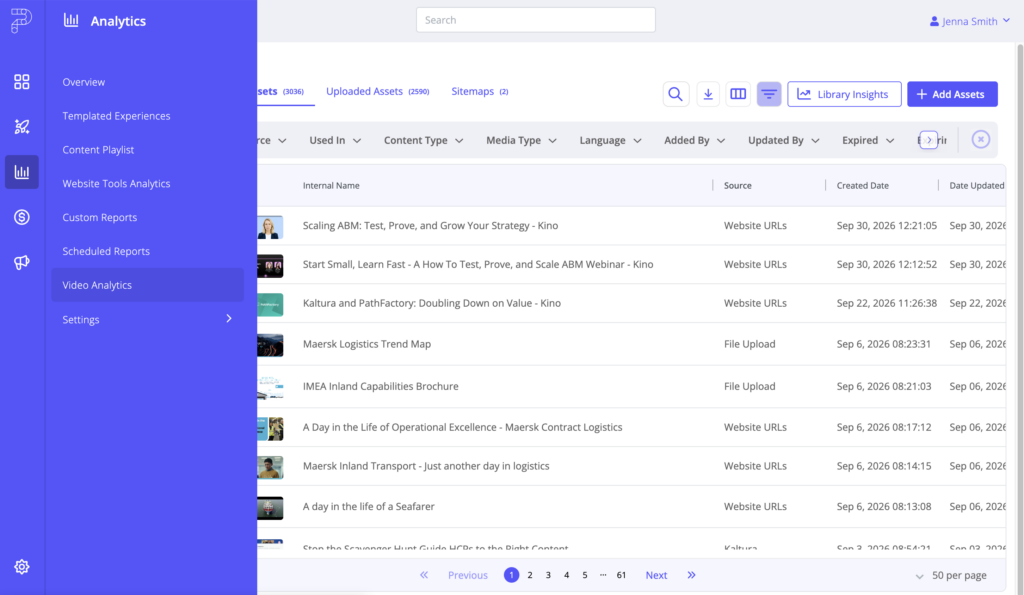
1. In PathFactory, open Analytics in the main navigation.
2. Select Video Analytics. The Kaltura analytics dashboard loads inside PathFactory.
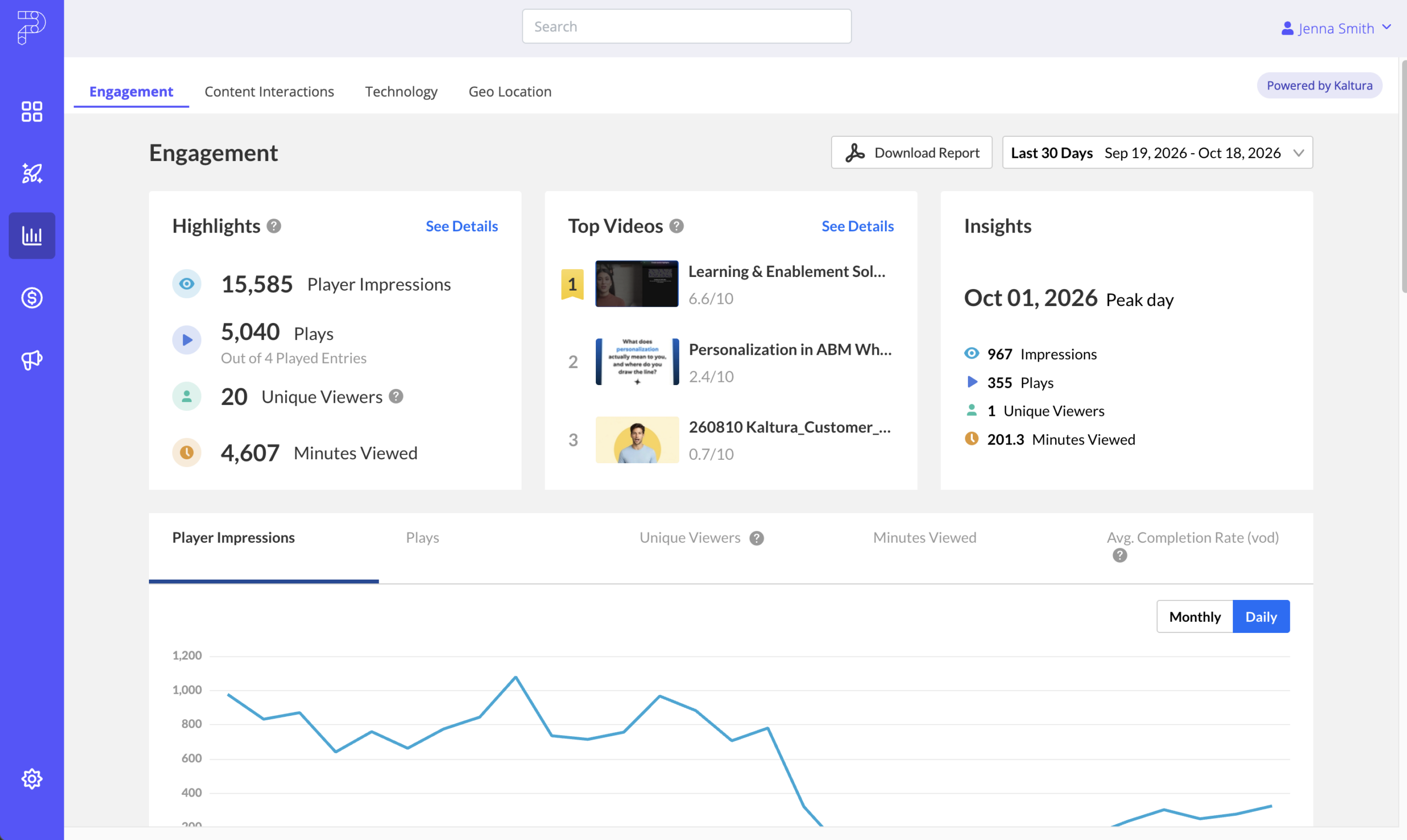
For details on how to read this dashboard, visit the Kaltura Rich Media CMS Audience Analytics article within Kaltura’s Knowledge Center.
Which videos are included
The dashboard is filtered to show analytics for videos that were brought into your PathFactory instance through the Kaltura integration. Videos that exist only in Kaltura Rich Media CMS and were never brought into PathFactory do not have data included in this view.
Note: The analytics for these videos reflect all viewing activity recorded by Kaltura, including views that happened outside of PathFactory experiences. To see Kaltura activity from PathFactory experiences only, review the Top Domains table within the video analytics dashboard and select your PathFactory domain.
Insights for a single video
Open insights
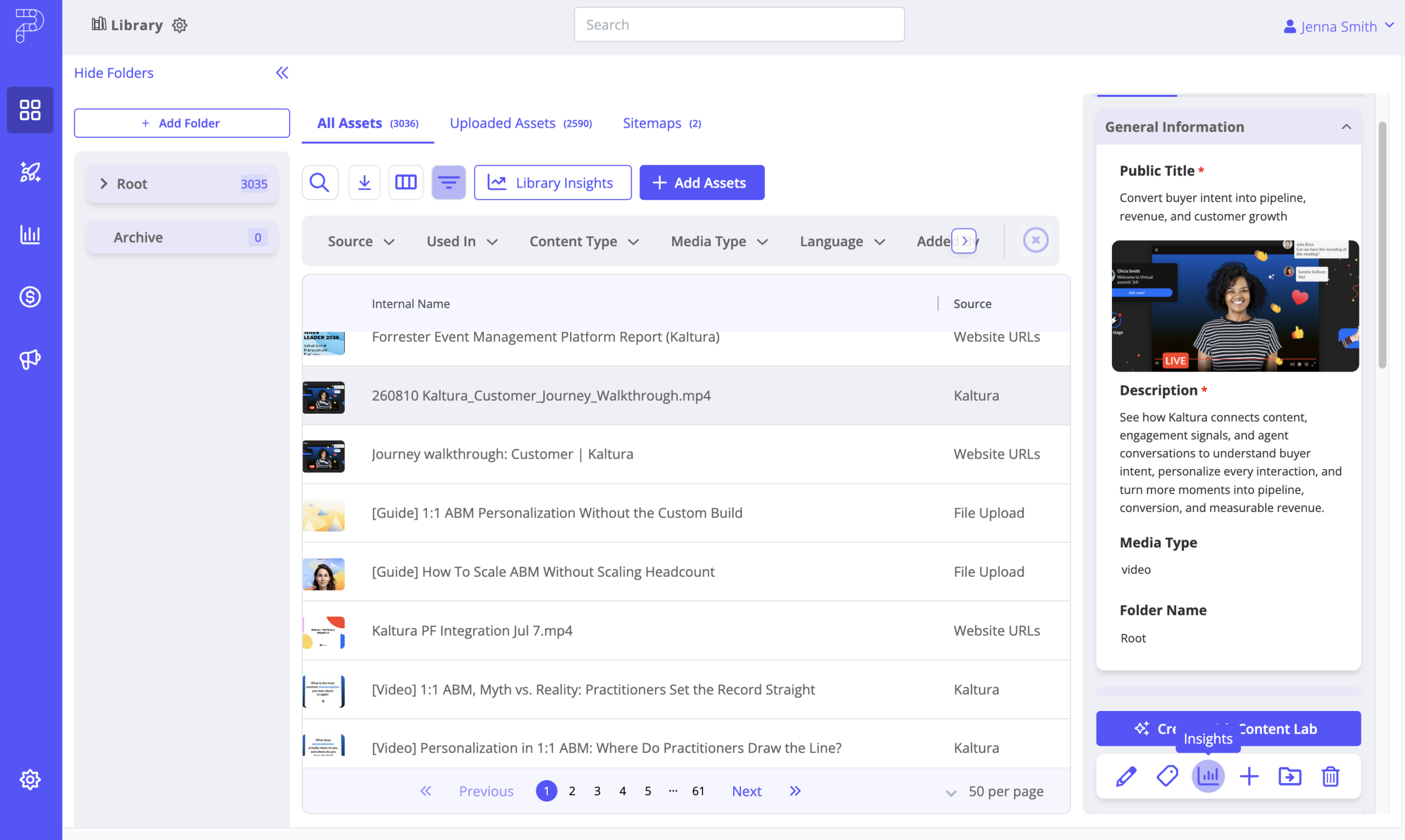
1. Open the Content Library and select a video that was brought in through the Kaltura integration.
2. In the right pane, select the Insights icon at the bottom. The Content Insights overlay opens.
3. Select the Insights tab. A “Powered by Kaltura” label confirms the data source.
4. Scroll to view the video-level analytics.
Explore the detail tables
Within the Insights tab you can expand the “View Engagement Per User” and “View Details” tables to see more detail, and collapse them again when you are done.
Note: The Insights tab is available only for video assets brought in through the Kaltura integration. For any other asset, including non-video content and videos that did not come from Kaltura, the Insights tab will not appear.
For more details on how to read these insights, visit the Kaltura Rich Media CMS Entry Level Analytics article within Kaltura’s Knowledge Center.
Frequently asked questions
Why does the dashboard only show some of my Kaltura videos?
Video Analytics is limited to videos that were brought into your PathFactory instance through the Kaltura integration. Videos that exist only in Kaltura are left out on purpose.
Why is there no Insights tab on one of my videos?
Insights appears only for videos that came from the Kaltura integration. Check that the integration is enabled, your video was imported through the integration, and that your role has access.
Do the numbers include views outside PathFactory?
Yes. Kaltura reports on all viewing activity recorded for the video, so the totals can include views that did not happen in a PathFactory experience. To see Kaltura activity from PathFactory experiences only, review the Top Domains table within the video analytics dashboard and select your PathFactory domain.
Why do the numbers for my video look different on the existing PathFactory analytics dashboards?
PathFactory and Kaltura measure different things, so their numbers are not expected to match. PathFactory analytics show how visitors engage with an asset as part of a PathFactory experience, while Kaltura analytics show how the video itself was played in the Kaltura player. The most common reasons for differences are:
- Where views are counted. Kaltura includes all viewing activity for the video, including views on your website, in Kaltura, or in other embeds. PathFactory only counts activity that happens inside PathFactory experiences.
- What counts as a view. A PathFactory view is recorded when a visitor opens the asset in an experience, whether or not they start the video. Kaltura counts a play only when the video starts playing, and separately counts player impressions each time the player loads.
- How time is measured. PathFactory engagement time reflects how long the asset was open and active in the visitor’s browser, including time before the video starts or while it is paused. Kaltura’s Minutes Viewed for on-demand video is calculated from quartile milestones (25%, 50%, 75%, 100%), so viewing time is rounded down to the last milestone reached. For example, watching 4 minutes of a 10-minute video is counted as 2.5 minutes.
- How visits are grouped. PathFactory may combine activity into a single visit, for example when a visitor refreshes the page or returns to the same asset within 30 minutes. Kaltura records each new player load and play separately.
- How viewers are identified. Kaltura counts unique viewers based on authenticated users and groups all anonymous viewers together as one. PathFactory tracks anonymous and known visitors individually, so visitor counts can differ significantly.
Use PathFactory analytics to understand how video contributes to the buyer journey, and Kaltura analytics to understand how the video itself was watched.
Views: 22