
How to Generate Editable Landing Page Templates Using AI in PathFactory
PathFactory’s AI Template Generation allows you to transform any existing landing page into an editable, reusable template — preserving your brand’s layout while giving marketers the flexibility to customize content, visuals, and personalization directly in the editor.
This feature helps teams launch campaigns faster and maintain consistent design standards across all experiences.
Overview
AI Template Generation automatically parses the HTML of a public landing page URL, extracts its structure and assets (headers, hero images, feature sections, and footers), and recreates the page as editable templates within your Template Library.
You can also upload a JPEG or PNG screenshot of a design (for example, from Figma or another design file).
This allows AI to infer the page layout visually even if you don’t have a live URL.
Steps
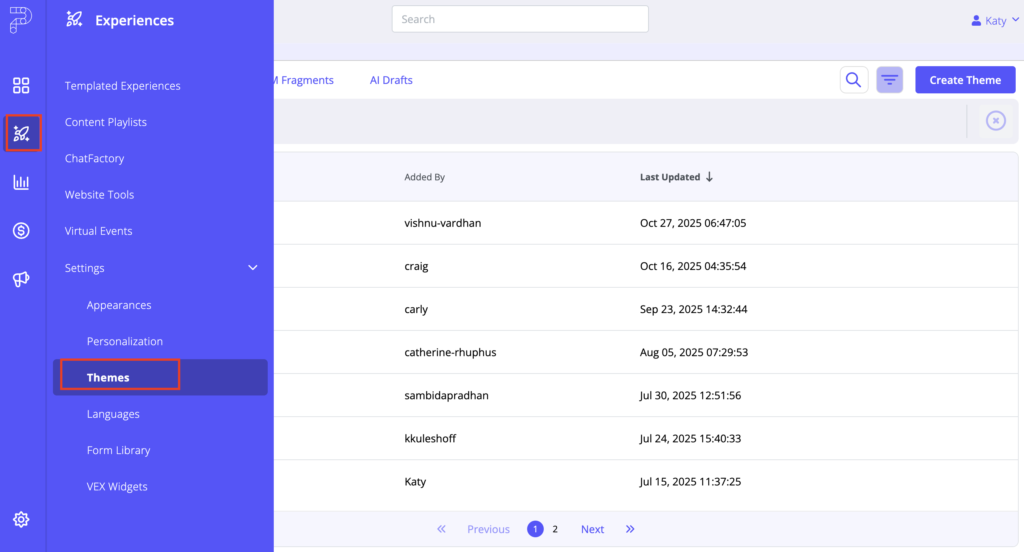
1. Navigate to Themes
From the PathFactory platform, go to Experiences → Themes.
Themes define the branding and layouts used to build landing pages and microsites within templated experiences.
2. Open the Template Library
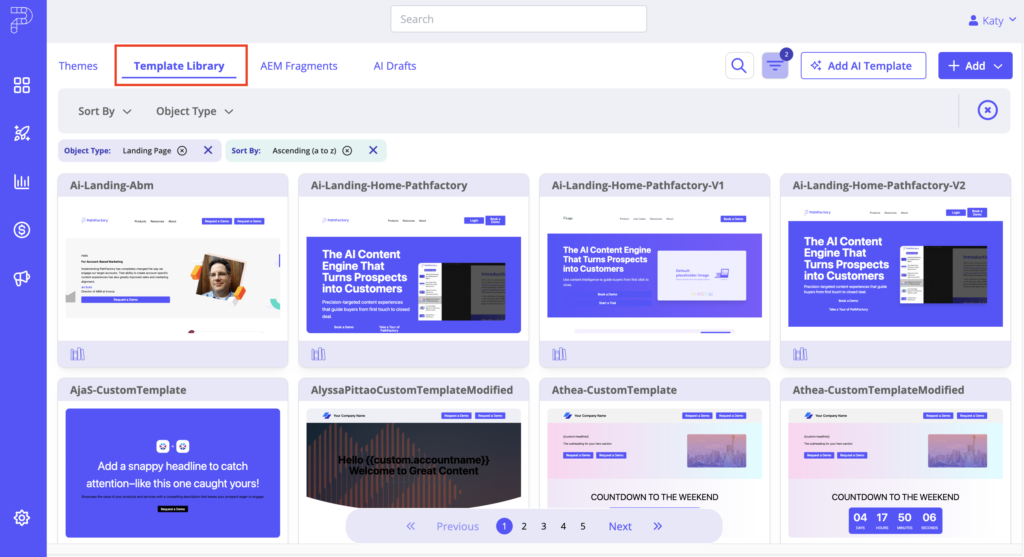
In Themes, click Template Library.
This area houses all object types available for templated experiences.
3. Launch AI Template Generation
In the Template Library, select Add AI Template.

You can choose one of two input options:
URL option: Paste a public page URL you want to replicate.
Image option: Upload a JPEG or PNG file of your design (for example, exported from Figma).
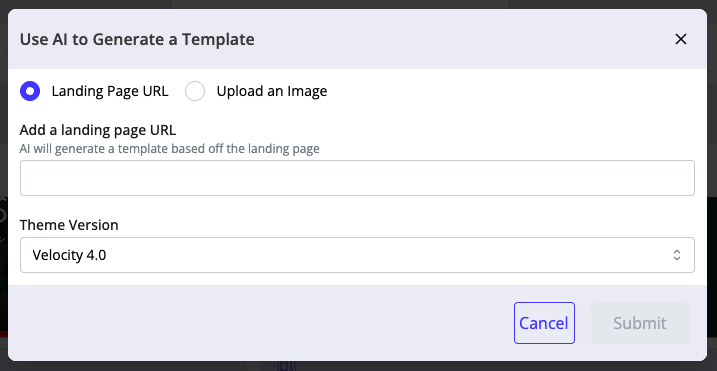
Click Submit to begin AI generation.
The system will scan the page or image, parse layout details, and generate a new template. The process typically takes around 10 minutes.
4. Review AI Drafts
When the AI is finished processing, navigate to AI Drafts in the Template Library.
From here, you can toggle between:
Landing Pages – full template renderings
Sections – individual building blocks the AI extracted
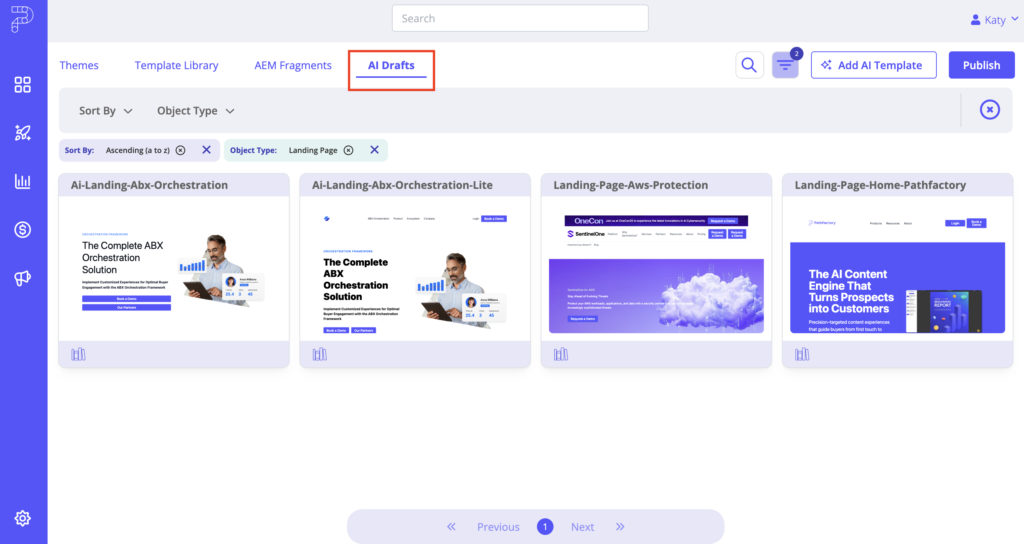
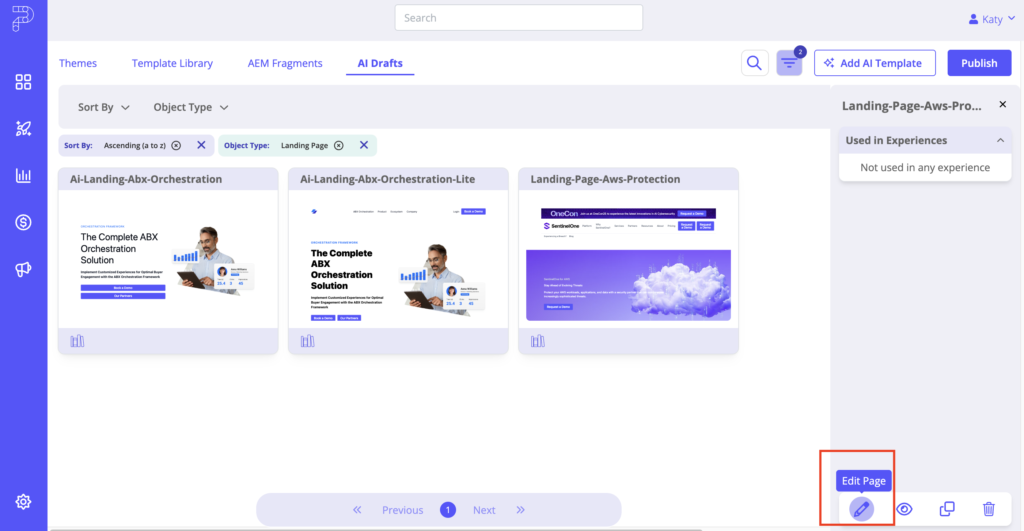
To view a draft, click on the tile and then click on the preview icon that shows up in the quickpane:

Each draft shows how the AI has parsed or visually reconstructed the source page into reusable components.
Drafts are stored separately until approved, ensuring quality control before publishing.
To preview the available configurations in Draft Mode, click on the pencil icon to edit the Template, and you’ll be able to see what kinds of WYSIWYG configurations the AI has built into your template.
5. Publish to Template Library
When you are happy with the draft:
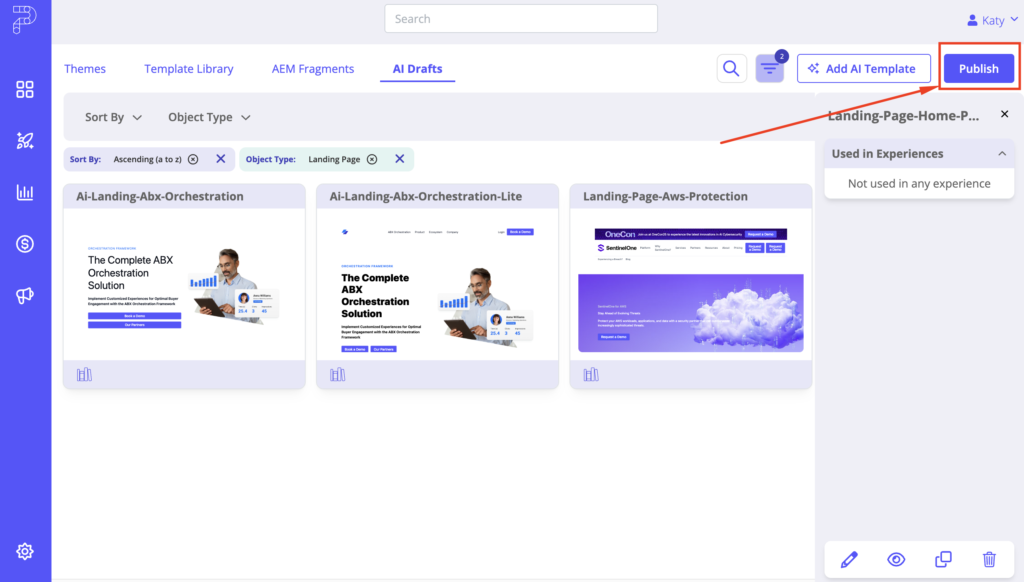
- In AI Drafts, click Publish
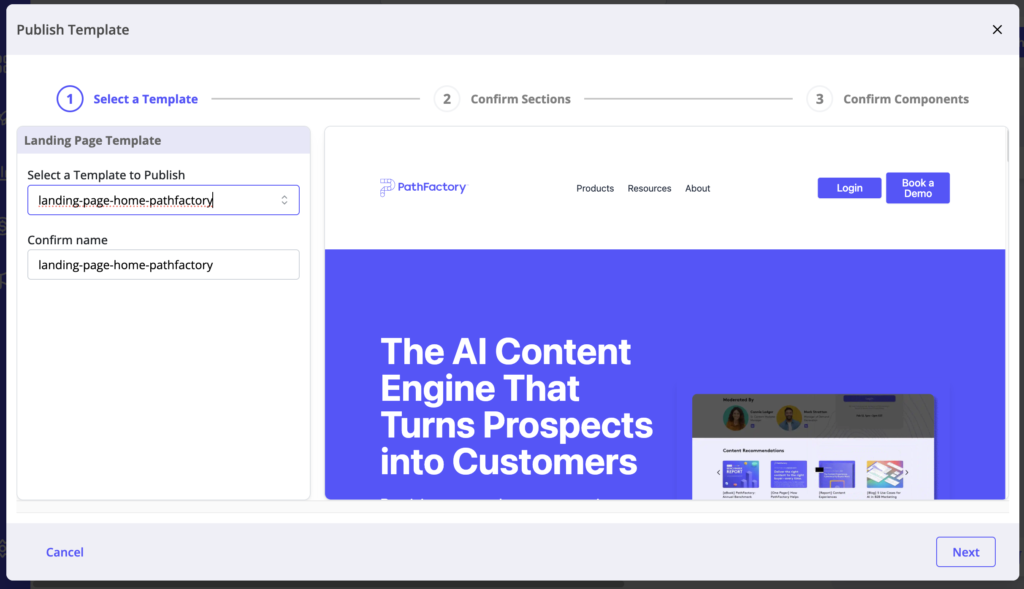
- Confirm or update the template name
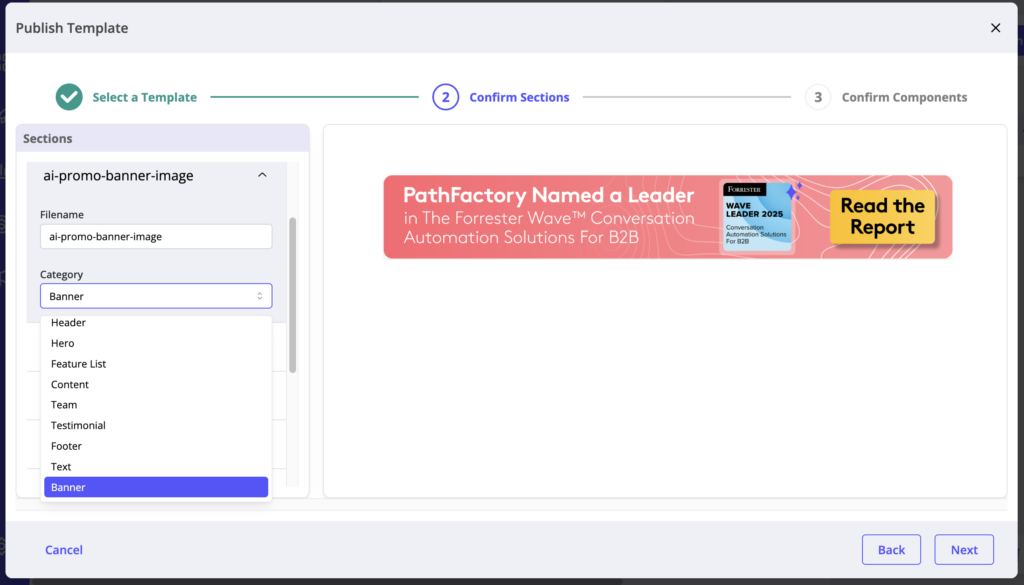
- Review and optionally recategorize sections
Example: A detected Hero could be recategorized as a Banner
- Click Done
Components are system-controlled and should not be modified
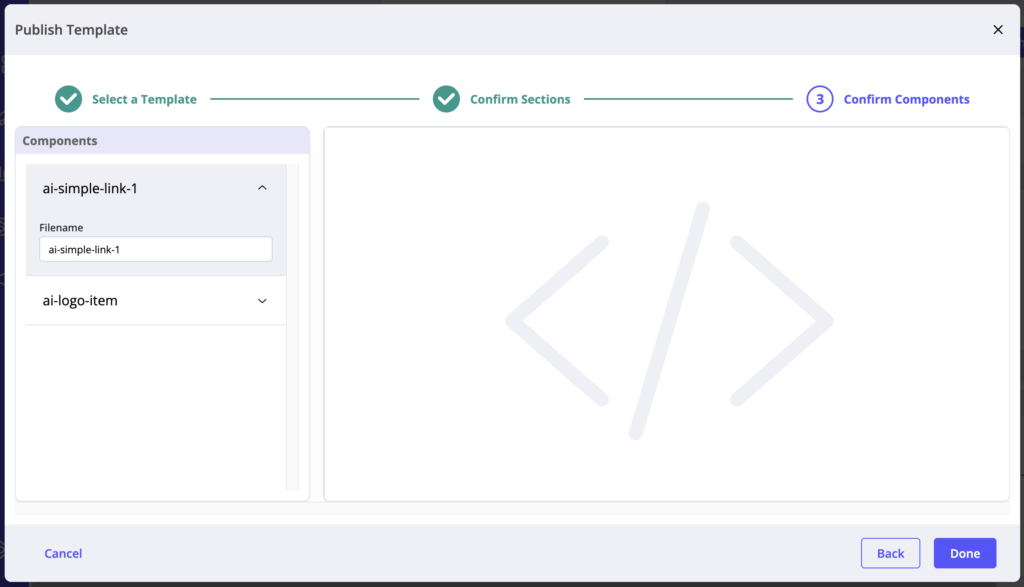
After publishing:
- The page appears in the Template Library as a Landing Page template
- Sections are also available individually in the Sections view
Now other marketers can build pages from this template.
5. Build a Landing Page from the Template
- Go to Experiences
- Open Templated Experiences
- Select Build from Template
- Pick the template you just published
- Select the Theme you want to apply branding with


Theme selection updates styling across the page, including:
- Font styles
- CTA button styles
- Color palette
The AI layout becomes fully editable with Theme-driven brand alignment.
6. Customize Sections
The AI breaks the reference page into sections that you can modify:
You can:
- Add field merges for Dynamic Personalization
- Update CTA labels, links, and alignment
- Make section-level edits to layout, style
- Change copy in any section
The structure is flexible. You are not confined to the original reference design.
For more information on how to configure a Templated Experience, refer to this article on configuring a Templated Experience.
7. Expand Layout With Additional Sections
If you need PathFactory sections not detected in the reference layout:
- Save your page
- Click Convert to Standalone
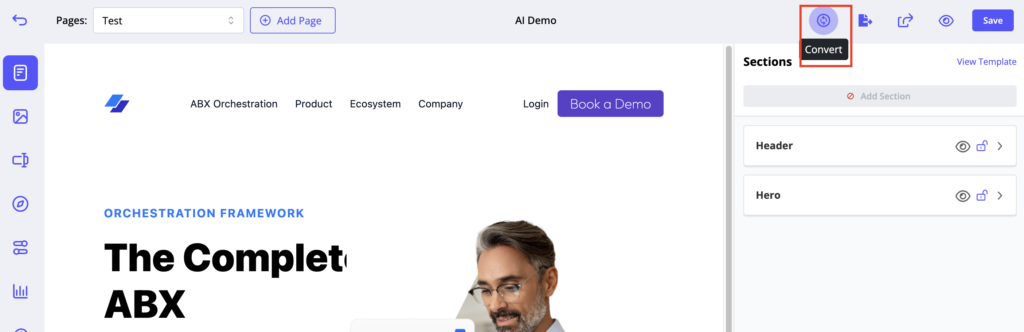
- Add, remove, or reorder sections freely
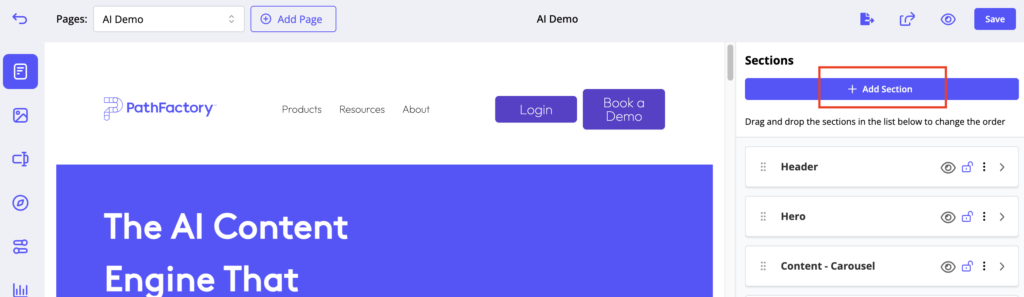
Popular additions include:
- Content Lists
- Forms
- Resource Center
This enables bingeable, content-rich experiences tied to your marketing goals.
Notes and Best Practices
Use public URLs for best fidelity: Image uploads don’t include the HTML structure or asset links, so AI cannot reproduce images directly.
Start from approved designs: Using live, brand-approved pages ensures accurate color, spacing, and font mapping.
Rerun if needed: AI output can vary depending on the source. Delete drafts and rerun generation for improved results.
Always review AI drafts: Approve sections before they move into the Template Library.
Enhance with PathFactory content: Convert AI-generated templates into standalone pages for embedded content engagement.
Outcome
By combining AI Template Generation with PathFactory’s no-code editing and content tools, marketers can go from an existing web design — or even a static design image — to a fully editable, trackable PathFactory experience in minutes.
This approach accelerates campaign creation, maintains brand integrity, and reduces manual build effort across every marketing initiative.
Views: 553