
Overview
Building segments manually has always required more than just a good targeting strategy. It requires knowing which field names your intent provider uses, understanding how attribute values are labeled across different data sources, and spending significant time validating that each rule reflects what you actually meant. A marketer who wants to target “large pharma companies in North America” has to translate that intent into a specific combination of industry values, region codes, and revenue buckets and those selections differ depending on whether your organization runs on 6sense, Demandbase, or ZoomInfo. One wrong term in the wrong field means your campaign reaches the wrong audience.
AI-Assisted Segment Creation removes that translation layer. You describe the audience you want in plain English, and PathFactory’s AI interprets your intent, maps it to the correct fields and attribute values for your connected data provider, and returns a ready-to-save segment definition. You review what the AI built, confirm or adjust any suggestions it is uncertain about, and save all within a single workflow. For teams running high-volume ABM programs, a bulk upload option lets you create up to 500 segments at once from a CSV file, with an email notification when processing is complete. Demand gen marketers, marketing ops teams, and anyone building personalization campaigns in PathFactory can now move from targeting idea to live segment in a fraction of the time it used to take.
Benefits
Precise audience targeting is the foundation of every effective ABM and personalization campaign. When your segments are accurate, the right content reaches the right accounts at the right moment and that alignment is what moves deals forward. What has held teams back is not the strategy; it is the setup. Marketers who know exactly which accounts to target have still spent hours manually translating that intent into filter combinations, cross-referencing provider-specific terminology, and correcting rules that looked right but produced the wrong audience.
AI-Assisted Segment Creation eliminates that setup burden entirely. Your team can now spend that time on campaign strategy, content selection, and performance analysis instead of field mapping. For marketing ops teams managing segment libraries at scale, the bulk upload capability means that what previously required days of manual configuration can be processed overnight with a clear success and failure report delivered directly to your inbox. Segments that would have taken an experienced user 20 minutes each to build manually can now be created from a spreadsheet row, processed by the AI, and saved to your library while your team is focused on other work.
The accuracy improvement matters just as much as the speed. Because the AI validates every rule against your provider’s actual field attributes before presenting results, the segments it builds use values that your data provider will recognize and match not approximations that look right but silently return empty audiences. The review step before saving gives you full visibility into what the AI interpreted from your query, so you can catch anything that needs adjustment before your segment goes live.
Prerequisites
PathFactory includes Demandbase as a built-in intent data provider, so most customers can use AI-Assisted Segment Creation without any additional provider setup. If your organization already has its own Demandbase instance, you can connect that instead through your account configuration. If your organization uses 6sense or ZoomInfo, that provider must be connected to your PathFactory instance before using this feature. AI-Assisted Segment Creation also requires both the core AI feature and the AI segment rules feature to be enabled for your organization. If the AI Assistant button is not visible on your Segments page, contact your PathFactory Customer Success Manager to confirm the relevant features are active for your account.
How It Works
When you describe a segment goal in plain English, PathFactory’s AI works through a multi-step pipeline before presenting any results. It first parses your query and identifies the key attributes you are describing: industry, geography, revenue range, company size, and so on. It then validates those attributes against your connected provider’s field attributes to confirm they map to real, supported fields. From there, it resolves the values you described, matching a term like “pharma” to the exact attribute value your provider uses, such as “Pharmaceuticals and Biotechnology” using a combination of exact matching, fuzzy matching, and semantic similarity search. Nothing is saved or written to your segment library until you explicitly review and confirm the results.
The results the AI returns are organized into two clear categories. Applied Rules are rules that the AI confirmed with high confidence. These are applied automatically and ready to save. Suggestions Available are rules where the AI found plausible matches, but wants your input before committing, typically because a term you used could map to more than one valid attribute value, or because a numeric range you specified maps to specific provider buckets that you should select manually. This two-step approach interprets first, executes only after review, which means the AI can be thorough and assertive in its interpretation without risking silent errors in your segment data.
For the bulk upload flow, the AI applies the same interpretation and validation logic to each row in your CSV file, processing segments in the background. Rows that pass validation are created automatically. Rows that cannot be processed are flagged in a failure report attached to your notification email, with a clear reason for each failure so you can take action.
The AI is aware of which intent provider your organization is using and applies that provider’s specific field attributes throughout. This means the same natural language query may produce slightly different field mappings depending on your provider, because each provider structures its attributes differently, and the AI accounts for those differences automatically.
How to Use It
Both flows begin in the same place: your Segments page in PathFactory. Navigate to Personalization and select Segments from the left sidebar. You will see the AI Assistant button in the top right corner of the page, marked with a NEW badge.
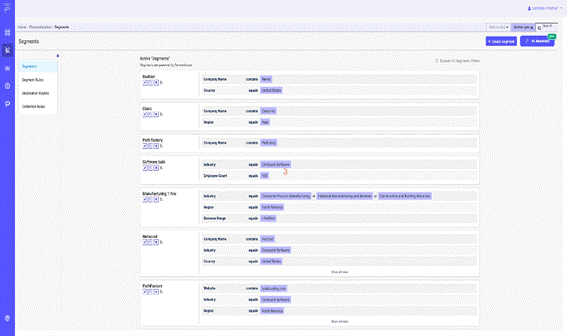
Creating a Single Segment with AI
1 Open the AI Segment Builder. Click the AI Assistant button. The AI Segment Builder modal opens with two tabs: Single segment and Bulk upload. Single segment is selected by default. You will see a text field, a set of Quick Start cards for common targeting scenarios, and example query cards to help you get started.
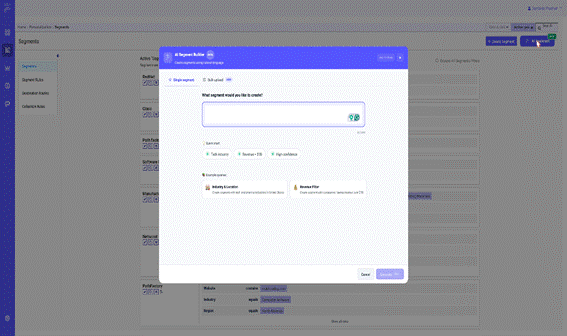
2 Describe the audience you want to target. Type a plain-English description of your target segment in the text field. Be as specific as you can, including the industry, geography, revenue range, company size, or any other attributes relevant to your campaign. For example: “Create a segment for pharma and biotech companies in North America with revenue over $1B.” You can also click any of the Quick Start cards to pre-fill a common query, then refine it from there. The character counter at the bottom right shows how much of the 500-character limit you have used.
3 Click Generate. The AI begins processing your request. A progress view shows each stage completing in sequence: parsing your query, understanding your intent, validating fields, resolving attribute values, and preparing results. This process typically takes a few seconds.
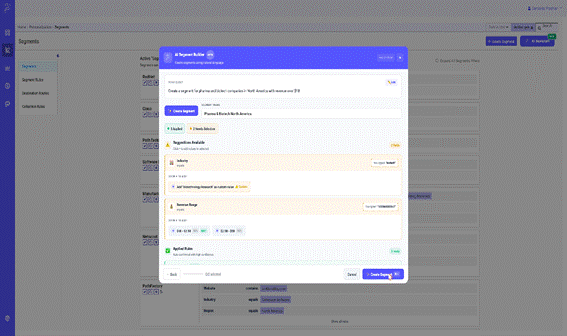
4 Review the results. When processing is complete, the modal displays your original query, a suggested segment name you can edit, and two sections of rules. Applied Rules shows the rules the AI confirmed and set automatically, ready to save. Suggestions Available shows any rules where the AI needs your selection, such as a revenue range that maps to specific buckets in your provider’s attribute list. Click any suggested value to add it to your segment.
5 Resolve any pending selections. For fields under Suggestions Available, click the value or range that best matches your intent. The status indicator at the top of the modal tracks how many rules are applied and how many still need a selection, so you always know where you stand before saving.
6 Click Create Segment. Once all selections are made, click Create Segment. Your new segment is saved to the segment library and available immediately for use in campaigns, personalization rules, and destination routes.
Creating Segments in Bulk via CSV Upload
1 Open the AI Segment Builder and select Bulk upload. Click the AI Assistant button, then select the Bulk upload tab. The bulk upload interface shows a CSV template download link and a drag-and-drop upload area.
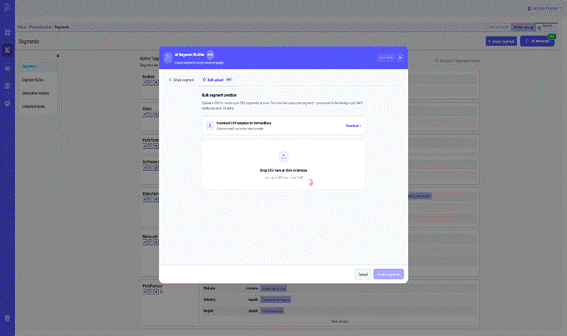
2 Download the CSV template. Click the Download link next to “Download CSV template for [your provider].” The template columns match the field attributes of your active intent provider, so each column corresponds to a valid, recognized field. Fill in one segment per row each row represents one segment the AI will create.
3 Upload your completed CSV. Drag your completed CSV file into the upload area, or click to browse. The modal validates the file and displays a preview showing how many segments are ready and which columns were matched. Files must be .csv format, up to 500 rows, and no larger than 5 MB.
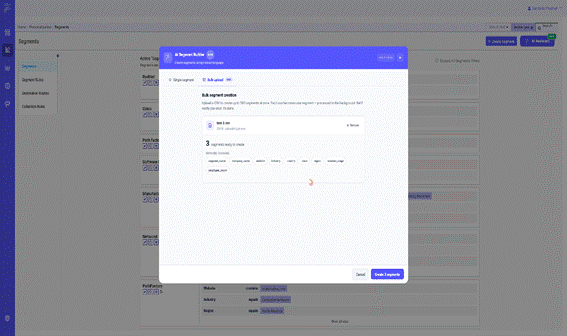
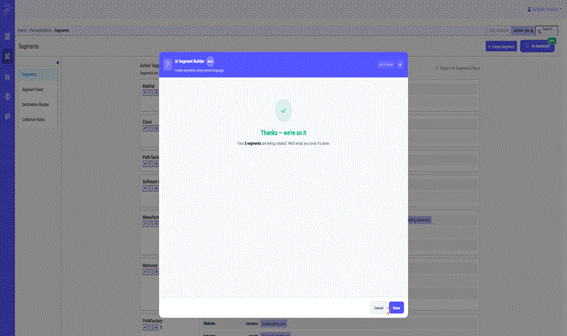
4 Click Create segments. Click the Create segments button to submit your file. The AI begins processing each row in the background. The modal immediately confirms your submission and lets you know that an email notification will be sent when processing is complete.
5 Check your email for results. When processing finishes, you will receive an email notification confirming which segments were created successfully. If any rows could not be processed, the email includes an attached CSV identifying each failed row and the reason for the failure.
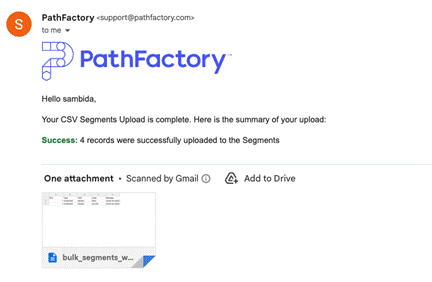
Success notification — confirms segments created and includes the warnings log attachment.
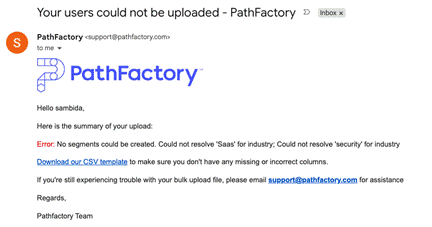
Failure notification — sent when no segments could be created.
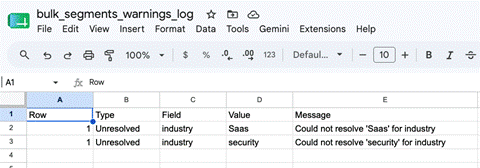
The warnings log CSV identifies each unresolved row by field, value, and reason.
Example Use Cases
Standing up a full ABM segment library before a product launch
A marketing operations manager is preparing PathFactory for a major product launch targeting 12 distinct audience segments across industries, geographies, and company sizes. Building each segment manually would take the better part of a week and require careful coordination with the team to ensure consistent naming and rule logic across all 12 segments.
Instead, the manager fills out the provider-specific CSV template one row per segment, each row specifying the industry, region, and company size criteria, and uploads the file through the Bulk upload tab. The AI processes all 12 segments overnight. The next morning, the manager receives an email confirming that 11 segments were created successfully and one row had an unrecognized attribute value in the region field. This can be corrected in the platform, and the full segment library is live before the launch-day kickoff meeting.
Onboarding a new team member to segment management
A newly hired marketing coordinator is tasked with creating segments for an upcoming campaign, but has no prior experience with PathFactory’s segment editor or the company’s connected intent provider. Asking them to manually build segments would require hours of onboarding on field attribute structures, provider-specific terminology, and the segment rule interface.
With AI-Assisted Segment Creation, the coordinator describes the target audiences in the same language they would use in a campaign brief, “enterprise healthcare companies in the US with more than 1,000 employees”, and the AI handles the translation into valid segment rules. They review the Applied Rules, confirm any suggestions, and save the segment on their first attempt. The quality of the segment is consistent with what a more experienced user would have built, without requiring the same depth of platform knowledge to get there.
Getting the Most Out of AI-Assisted Segment Creation
The more specific your natural language query, the more accurate and complete the AI’s interpretation will be. A query like “large technology companies” gives the AI fewer signals to work with than “enterprise software and SaaS companies in the United States with more than 1,000 employees and revenue over $500M.” Including industry, geography, company size, and revenue in your query from the start reduces the number of rules that land in Suggestions Available and minimizes the review step before saving. If you have a specific segment goal in mind, invest 10 seconds in a specific description rather than starting broad and iterating.
For bulk uploads, always start from the downloadable CSV template rather than building your own column structure from scratch. The template columns are generated specifically for your active intent provider and match the exact field names and attribute value formats the AI expects. Using the template ensures that the AI can match your inputs to valid attribute values with the highest possible confidence, which means more segments created automatically and fewer failures to resolve. If your organization uses a specific naming convention for segments, pre-populate the segment_name column in the CSV to ensure consistent naming across your entire library without additional editing after creation.
When reviewing results for a single segment, pay close attention to any rules that land in Suggestions Available rather than Applied Rules. These are fields where the AI found more than one plausible attribute value match and wants your explicit selection, especially for fields like industry or sub-industry, where a small difference in attribute value can meaningfully change which accounts your segment captures. Taking an extra 30 seconds to verify the Suggestions Available selections is the most effective thing you can do to ensure your segment performs as expected in a live campaign.
FAQs
Which intent data providers does AI-Assisted Segment Creation support?
The AI supports 6sense, Demandbase, and ZoomInfo. PathFactory includes Demandbase as a built-in provider, so customers using Demandbase do not need any additional setup to use this feature. When you submit a query, the AI automatically uses your organization’s active provider to validate fields and resolve attribute values so the rules it generates are always compatible with your connected data source.
Why are some rules shown as “Suggestions Available” instead of being applied automatically?
The AI applies rules automatically when it has high confidence that a single attribute value is the correct match for what you described. When a term you used could map to more than one valid attribute value or when your query specifies a numeric range that maps to specific provider buckets, the AI presents options for you to select rather than guessing. This is a deliberate design choice: for fields like industry and sub-industry, an incorrect auto-selection would silently target the wrong accounts, which is worse than a brief pause for you to confirm the right value. Suggestions Available is not a failure state it is the AI being appropriately careful.
What happens if rows in my bulk CSV fail to process?
Failed rows do not block the rest of your upload from completing. Segments that pass validation are created as normal. For rows that could not be processed, you will receive an email with an attached CSV file identifying each failed row and the specific reason for the failure, for example, an unrecognized attribute value or a column that did not match your provider’s field attributes.
Can I edit a segment after creating it with AI?
Yes. Segments created through AI-Assisted Segment Creation are saved to your segment library exactly like any manually created segment. You can open any AI-created segment in the standard segment editor to add, remove, or modify rules at any time.
What happens if the AI can’t find a match for something I described?
If the AI cannot find a confident attribute value match for part of your query, it will omit that rule from the results rather than apply an approximation. The rules that did match with confidence will still appear in Applied Rules or Suggestions Available, as normal, a partial match does not cancel the rest of the segment. If a rule you expected to see is missing, try rephrasing that part of your query using more specific terminology, or check the attribute values your intent provider supports for that field. For bulk uploads, rows where the AI cannot resolve any attributes are flagged in the failure report attached to your notification email, with a specific reason.
Is my query data private? Does PathFactory use it to train AI models?
Queries you submit through AI-Assisted Segment Creation are used solely to generate segment results within your session. PathFactory does not use your query text or the segment definitions produced by the AI to train or improve underlying AI models. Your account data, intent provider configuration, and segment library remain private to your organization and are not shared across customers. If your organization has specific data processing requirements, your Customer Success Manager can provide the relevant documentation to share with your security or legal team.
Availability
AI-Assisted Segment Creation is available now for PathFactory customers with the AI features enabled on their account. PathFactory includes Demandbase as a built-in intent provider, so no additional provider setup is required for most customers. The feature is accessed directly from the Segments page in PathFactory. Both the single segment and bulk upload flows are available to users with access to the Segments section. To enable this feature for your organization, contact your Customer Success Manager.
Get Started
Navigate to Personalization and select Segments from the left sidebar in PathFactory. Click the AI Assistant button in the top right corner of the Segments page to open the AI Segment Builder. If the button is not visible, contact your Customer Success Manager to confirm that AI features are enabled for your account and to get set up.
Views: 112