
This article describes what visitor activities are, how they work, and how to create them.
What are Visitor Activities?
PathFactory’s Visitor Activities allow you to define exactly what meaningful visitor engagement is to you. PathFactory tracks how long visitors spend on individual assets, but you can make this data even more actionable by creating visitor activities to define specific actions that you want to record.
A Visitor Activity is a defined activity that has a configured engagement threshold to be met in a session. Whenever a visitor meets that threshold, the activity is created and associated to them. Each activity is given its own name so they can be identified in analytics and provided in any event data if being sent in a webhook to a third party system.
Why do you use Visitor Activities?
Visitor Activities are what help you go beyond the click. Click-through rates (CTR) only let you know that visitors click a button or link, but they don’t tell you anything about how visitors are actually interacting with your content.
PathFactory records how long visitors spend on each content asset and can also track their path through content tracks. This can then be used to indicate whether visitors are actually spending time with your content or simply passing through.
The various types of visitor activities help to further organize this information for you. A visitor’s session may be significant for different reasons, and having more detailed information about their behavior helps create more robust prospect profiles.
How do Visitor Activities work?
Below is a high level view of how visitor activities work to gather data.
|
1. Create Activities |
Create Visitor Activities for the different visitor behaviors and engagement levels you want to capture. |
|
2. Create Webhook |
Create a Visitor Activity webhook; if there is no webhook the data will not be sent to your third party application. However, this data will still be recorded and available in your PathFactory analytics. |
|
3. Collect Data |
Visitor Activity data is captured every time a visitor’s behavior meets the defined criteria. |
Types of Visitor Activities
There are four main categories of Visitor Activities:
- Content Tracks, Explore Pages, Microsites and Virtual Events (the first three are collectively referred to as Legacy Experiences)
- Website Tools
- Templated Experiences / Content Playlist
- ChatFactory
To view and setup your visitor activities, follow these steps.
- On the main menu, select the gear icon and then select Integrations -> Visitors Activities.
- You see a list of Visitor Activities that have already been created. You can click on any of them to see their details.
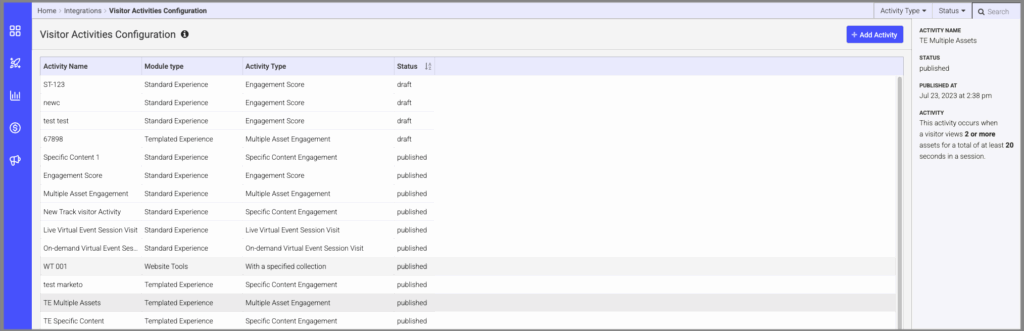
Visitor Activity Settings Details - To set up a new one, click the +Add Activity button. The following menu pops up.
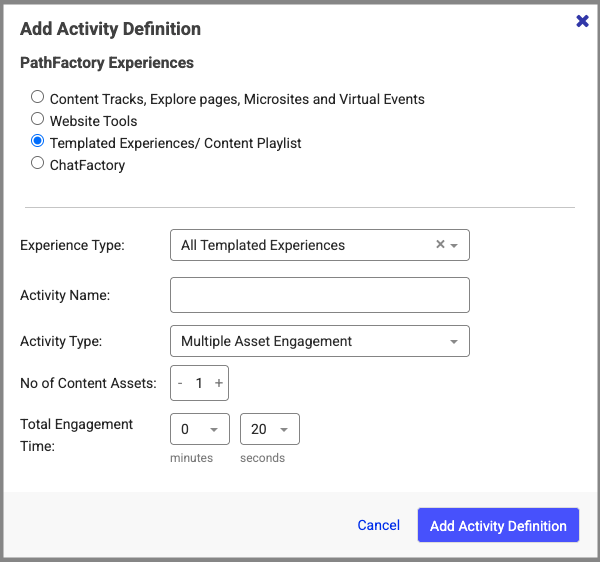
Add Activity Definition Popup Menu - Select which Activity you are adding by selecting its radio button at the top.
- Select the Activity Type dropdown list and choose an option from there. See next sections for more details for each Activity Type.
- Fill in the following fields.
- Activity Name: A name you select for your own reference.
- Activity Type: Select an option from the dropdown list.
- Other fields as determined by the activity type that is selected.
Activity Types
Engagement Score
This activity is based on the engagement score achieved by a visitor while viewing content in a Legacy Experience.
What is an Engagement Score?
- Content Engagement Score: Each content asset has an engagement score which can be configured in the Content Library. Set how long a visitor must view the content asset, and what score they will receive when they do.
- Session Engagement Score: This is the sum of all Content Engagement Scores earned by a visitor during their session.
Multiple Asset Engagement
This activity is based on a visitor viewing multiple pieces of content for a set amount of time in a Templated Experience, Content Playlist, ChatFactory or Legacy Experience.
Specific Content Engagement
This activity is based on a visitor viewing a specific content asset for a set amount of time in a Templated Experience, Content Playlist, ChatFactory or Legacy Experience.
How does this work?
- Create a Specific Content Engagement Visitor Activity
- Select which content asset a visitor must view to trigger the activity.
- Set the amount of time a visitor must view the content asset to trigger the activity.
- The activity is recorded in PathFactory. If the visitor is known and you’ve set up a Visitor Activity Webhook, the visitor activity data will be sent to your MAPA visitor views the selected content asset for the minimum amount of time.
Live Virtual Event Session Visit
This activity is based on a visit to a live virtual event.
How does this work?
- Choose the “Live Virtual Event Session Visit” activity type. The activity will be triggered when a visitor visits a live virtual event session.
On-demand Virtual Event Session Visit
This activity is based on a visit to an on-demand virtual event.
How does this work?
- Choose the “On-demand Virtual Event Session Visit” activity type. The activity will be triggered when a visitor visits an on-demand virtual event session.
Meaningful Engagement
This metric measures how long a visitor spends consuming any of your content within a Templated Experience or Content Playlist. We’re not just considering when someone clicks on a link, but instead we are paying attention to when they meet the threshold on this content we’ve set in PathFactory. In this case, only meaningfully engaged prospects will be counted.
How does this work?
- Create a Meaningful Engagement Visitor Activity
- Select which content asset a visitor must view to trigger the activity.
- Set the amount of time a visitor must view the content asset to trigger the activity.
- The activity is recorded in PathFactory. If the visitor is known and you’ve set up a Visitor Activity Webhook, the visitor activity data will be sent to your MAPA visitor views the selected content asset for the minimum amount of time.
With a Specified Collection
This activity measures how much time your visitor spends within a specific collection of content assets in Website Tools. When you select this Activity Type, you must also select a Collection from the dropdown list that appears.
How does this work?
- Create a Specified Collection Visitor Activity
- Select which collection a visitor must view to trigger the activity.
- Set the number of assets a visitor must view the content asset to trigger the activity.
- The activity is recorded in PathFactory. If the visitor is known and you’ve set up a Visitor Activity webhook, the visitor activity data will be sent to your MAPA visitor views the selected content asset for the minimum amount of time.
On Reaching a Threshold With a Specified Website Property
This webhook measures the number of assets a visitor has viewed, but also what type of assets they viewed and for how long they viewed them in Website Tools.
How does this work?
- Create a Specified Website Property Activity
- Select which property a visitor must view to trigger the activity.
- Set the number properties a visitor must view the content asset to trigger the activity.
- The activity is recorded in PathFactory. If the visitor is known and you’ve set up a Visitor Activity webhook, the visitor activity data will be sent to your MAPA visitor views the selected content asset for the minimum amount of time and viewed a minimum number of assets.
On Reaching a Threshold with a Specific Collection
This webhook is triggered when a visitor meets the threshold you set for viewing content in Website Tools.
Enter the minimum amount of time (using the minutes and seconds fields in the menu) you want the visitor to view the content, to meet this threshold.
How does this work?
- Create a Specified Website Property Activity
- Select which property a visitor must view to trigger the activity.
- Set the number properties a visitor must view the content asset to trigger the activity.
- The activity is recorded in PathFactory. If the visitor is known and you’ve set up a Visitor Activity webhook, the visitor activity data will be sent to your MAPA visitor views the selected content asset for the minimum amount of time and viewed a minimum number of assets.
With a specified topic/tag/category
This metric measures how long a visitor in ChatFactory spends consuming any of your content with specified tags from a selected category.
How does this work?
- Create a Specified Topic/Tag/Category Visitor Activity
- Select a category.
- Select tags from that category.
- Set the amount of time a visitor must view content assets with the specified tags to trigger the activity.
- The activity is recorded in PathFactory. If the visitor is known and you’ve set up a Visitor Activity webhook, the visitor activity data will be sent to your MAP.
On Reaching a Conversation Threshold
This metric measures how long a visitor in ChatFactory spends with ChatFacdtory, as well as the number of queries they ask the AI agent.
How does this work?
- Create a Conversation Threshold Visitor Activity
- Select the number of queries a visitor must ask to reach the threshold.
- Set the amount of time a visitor must spend with ChatFactory to trigger the activity.
- The activity is recorded in PathFactory. If the visitor is known and you’ve set up a Visitor Activity webhook, the visitor activity data will be sent to your MAP.
On Creating a Buyer Experience
This metric tracks if the user has created a buyer experience, along with the number of content assets they have added to the agent library.
How does this work?
- Create a Buyer Experience Visitor Activity
- Set the number of content assets that are added to the library to trigger the activity.
- The activity is recorded in PathFactory. If the visitor is known and you’ve set up a Visitor Activity webhook, the visitor activity data will be sent to your MAP.
Other Resources
Views: 184