
Activate Kaltura Video Across PathFactory Experiences
Overview
For marketing teams that use PathFactory to build buyer experiences, the Kaltura integration creates a direct path from video management to content activation. With this integration, PathFactory customers can now upload and host videos directly in PathFactory, hosted by the Kaltura Rich Media CMS. Customers who already use Kaltura can connect their existing Kaltura account to PathFactory, browse available Kaltura media, and import selected videos into the PathFactory Content Library. Customers who do not already have a Kaltura account can use a Kaltura provisioned account to upload new media to Kaltura directly from PathFactory.
Once media is imported or uploaded, it becomes available in the PathFactory Content Library and can be added to Collections or used directly within supported PathFactory experiences, including Templated Experiences and Content Playlists. Kaltura remains the source of truth for the video file. PathFactory stores a reference to the Kaltura asset and plays the video through the embedded Kaltura player wherever the asset appears in a PathFactory experience.
This allows teams to manage video through Kaltura while using PathFactory to organize, package, and activate video across buyer journeys.
Why Use the Kaltura Integration
The Kaltura integration brings together Kaltura’s video management capabilities with PathFactory’s buyer engagement experiences, giving teams a simpler way to turn video content into campaign-ready assets.
Eliminate manual video workflows
Before this integration, teams often had to use a separate system to host their videos, then add the link to the video into PathFactory. With the Kaltura integration, marketers can add any videos directly into the PathFactory Content Library without the additional step. The videos can be hosted directly and added to any PathFactory experiences without manually re-uploading or re-hosting the video file.
Add Kaltura-hosted video to PathFactory workflows
For customers who do not already use Kaltura, Kaltura can provision an account for use with this integration. This gives teams a connected way to upload video into PathFactory, process and enrich it in Kaltura, and activate it through the PathFactory Content Library. Once uploaded, videos are processed by Kaltura, imported into the PathFactory Content Library, and made available for use in Collections and supported PathFactory experiences.
Keep Kaltura as the source of truth
Kaltura continues to manage the video asset, including hosting, processing, playback, captions, transcription, and player configuration. PathFactory stores a reference to the Kaltura asset and makes it available for use across supported buyer-facing experiences. This allows each platform to do what it does best: Kaltura manages the video, and PathFactory activates that video as part of the buyer journey.
Activate video across buyer experiences
Once imported into the PathFactory Content Library, Kaltura videos can be added to Collections and used across PathFactory experiences, including Templated Experiences and Content Playlists. This gives demand generation, content, field marketing, and ABM teams an easier way to include video in nurture programs, campaign destinations, event follow-up, product education, customer stories, and account-specific experiences.
Preserve the buyer playback experience
Kaltura videos play inside PathFactory experiences using the embedded Kaltura player. This helps preserve the playback quality, captions, branding, and player experience configured in Kaltura while giving buyers a seamless PathFactory content journey.
Keep your content library aligned with Kaltura
Because Kaltura remains the source of truth, updates made in Kaltura are reflected in PathFactory through the integration’s sync behavior. This helps keep the PathFactory Content Library aligned with the current state of your Kaltura media and reduces the need to maintain the same video assets manually in two systems.
Note: If a video is deleted in Kaltura, it is also removed from the PathFactory Content Library and any associated experiences. If a video is archived in Kaltura, it is archived in PathFactory as well.
Connect video to buyer engagement
PathFactory captures engagement with the PathFactory experience where the Kaltura video appears. Kaltura provides video-specific playback analytics through the Kaltura player. Together, these systems help teams understand how video contributes to buyer engagement across both the broader PathFactory journey and the Kaltura video experience.
Prerequisites
Before using the Kaltura integration, confirm which account setup path applies to your organization.
If you are connecting an existing Kaltura account
If your organization already uses Kaltura and wants to connect its existing Kaltura account to PathFactory, make sure:
- Your organization has an active Kaltura account
- The Kaltura account is set up to use Shared Users
- A PathFactory organization administrator can access Organization Settings
- The administrator has the required Kaltura connection details.
If you are using a PathFactory-provisioned Kaltura account
If your organization does not already have a Kaltura account, PathFactory will provision and preconfigure a Kaltura account for use with PathFactory before users begin working with Kaltura-hosted video assets. Contact your CSM directly to support this process.
User access and metadata requirements
For both setup paths, make sure:
- Users who need to import or upload Kaltura media have access to the PathFactory Content Library
- Any required PathFactory metadata fields are completed before Kaltura assets are saved to the Content Library
How Kaltura Media Works in PathFactory
When you import a Kaltura video into PathFactory, PathFactory does not copy or re-host the video file. Instead, PathFactory stores a reference to the Kaltura asset and imports key asset details, such as the title, thumbnail, description, and playback URL. The video file remains in Kaltura and plays in PathFactory using the embedded Kaltura player. This means your team can continue managing the video in Kaltura while using PathFactory to organize, package, and activate that video across buyer experiences.
Set Up the Kaltura Integration
The setup path depends on whether your organization is connecting an existing Kaltura account or using a PathFactory-provisioned Kaltura account.
Connect an existing Kaltura account
If your organization already uses Kaltura, a PathFactory organization administrator can configure the integration from Organization Settings.
- In PathFactory, go to Organization Settings
- Open the Integrations section
- Locate the Kaltura integration card

Figure 1: Kaltura integration card in Organization Settings - Open the Kaltura integration setup.
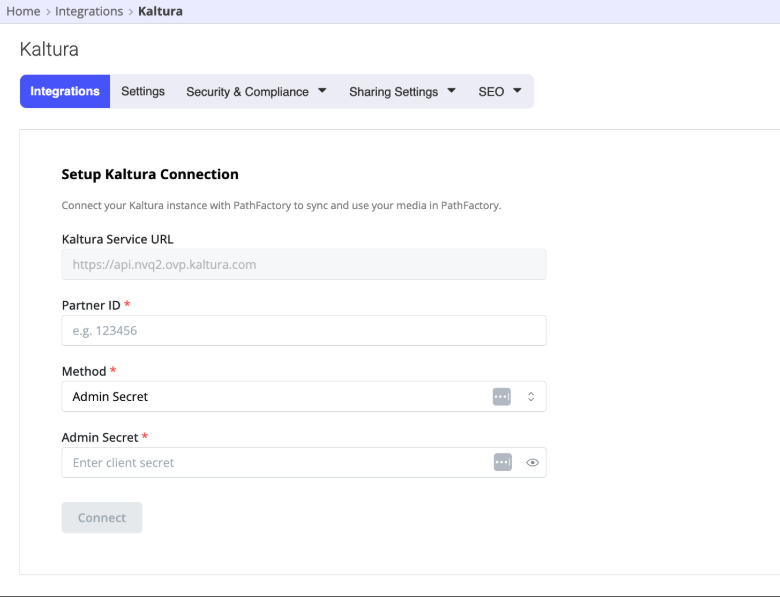
- Enter the required Kaltura connection details
- Save the configuration
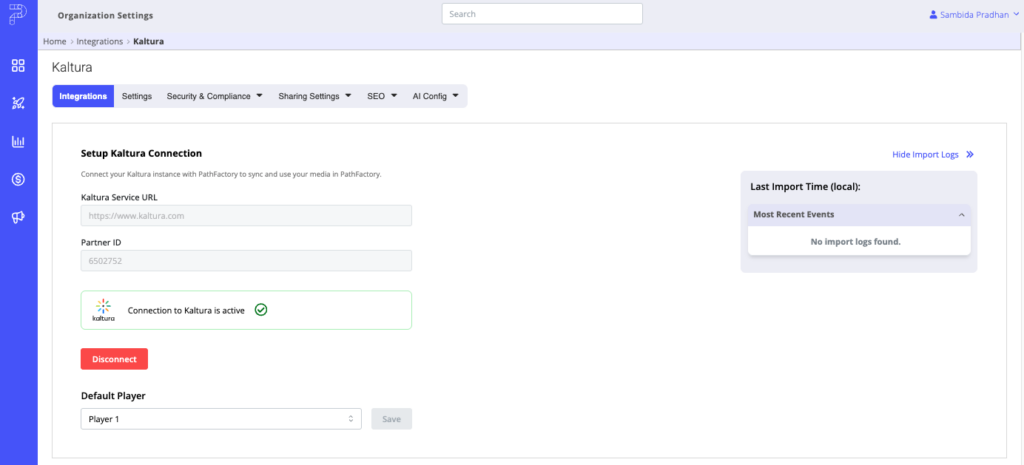
After the integration is configured, the Kaltura import option becomes available in the Content Library for users with the appropriate access.
Use a PathFactory-provisioned Kaltura account
If your organization does not already have a Kaltura account, PathFactory will provision and preconfigure a Kaltura account for use with the integration.
After the account is provisioned and connected to PathFactory, users with the appropriate Content Library access can upload new media to Kaltura from PathFactory, import Kaltura media into the Content Library, and use that media in Collections and supported PathFactory experiences.
Import Kaltura Media into the Content Library
After the integration is active, users can import Kaltura media from the PathFactory Content Library.
- Go to the Content Library
- Select Add Assets
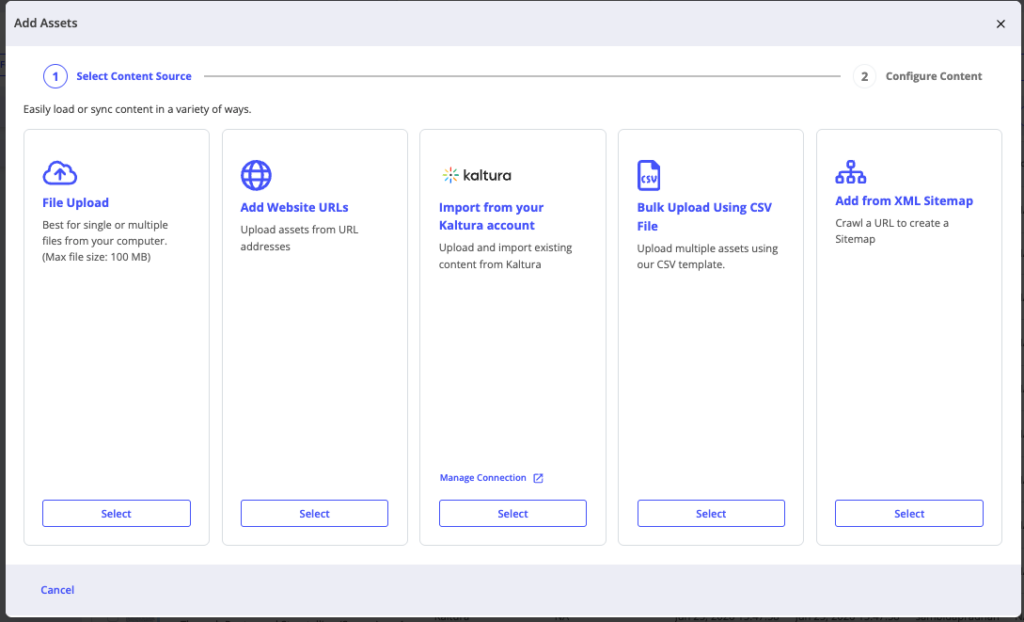
- Choose the Kaltura import option.
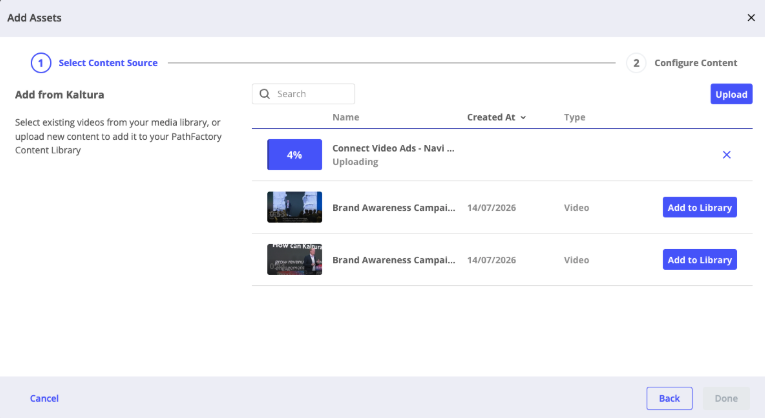
- Browse or search for the video you want to import.
- Select the video.
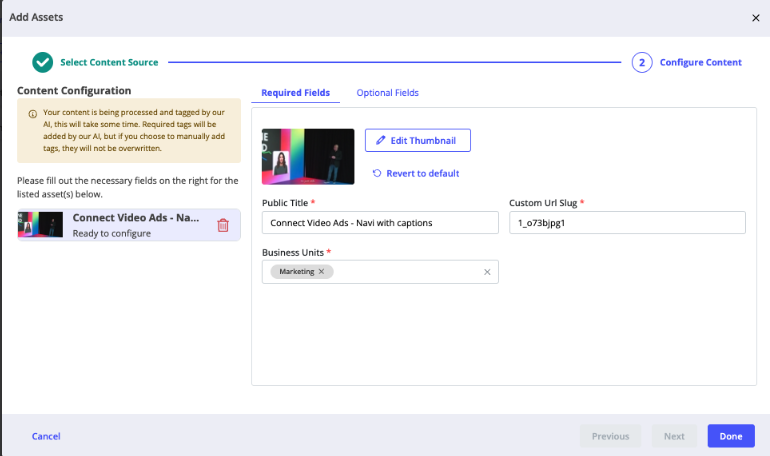
- Click Add to Library
- Complete any required PathFactory metadata fields
- Save the asset
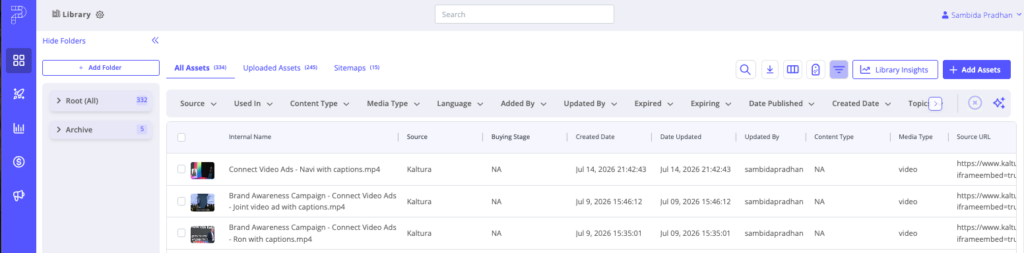
The imported video appears in the Content Library and can be added to Collections or used in supported PathFactory experiences.
Upload New Media to Kaltura from PathFactory
Users can upload new media to Kaltura directly from the PathFactory Add Assets workflow.
When a new video is uploaded, Kaltura processes the video through its standard processing workflow. Once processing is complete, the media is imported into the PathFactory Content Library.
The media also continues through Kaltura’s enrichment process. Once enrichment is complete, captions and transcription become available for the asset in PathFactory.
Add Kaltura Media to Collections and Experiences
After a Kaltura video has been imported into the Content Library, it can be added to Collections or used in supported PathFactory experiences.
To add a Kaltura video to an experience:
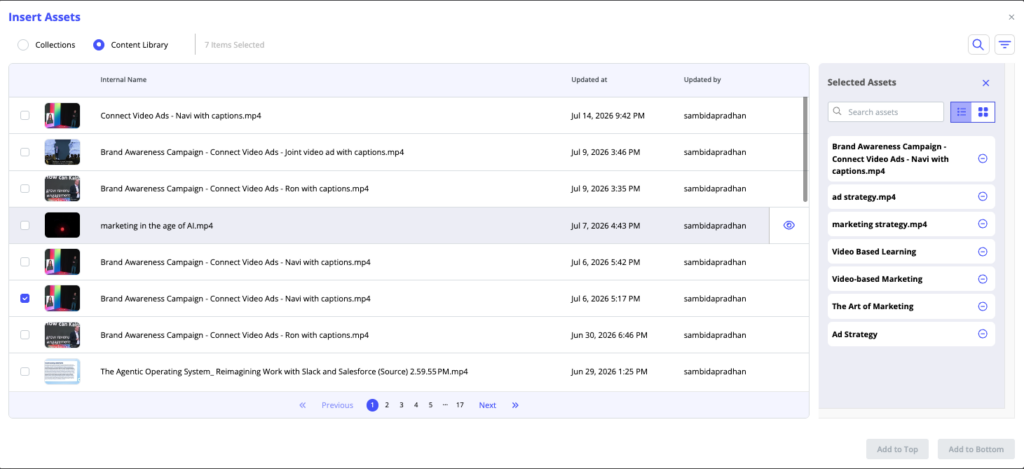
- Open the Templated Experience or Content Playlist where you want to use the video
- Add content from the Content Library or select the Collection that includes the video
- Select the imported Kaltura video
- Save and share the experience
- When buyers view the experience, the video plays using the embedded Kaltura player
Sync Behavior
Kaltura remains the source of truth for the video asset. When supported changes are made in Kaltura, PathFactory reflects those changes through the integration’s sync behavior.
Supported sync behavior includes updates when a Kaltura asset is:
- Updated
- Archived
- Hidden or made unavailable
- Deleted
This helps keep the PathFactory Content Library aligned with the current state of your Kaltura media.
Analytics Behavior
PathFactory captures engagement with the PathFactory experience where the Kaltura video appears. This includes session-level activity as part of the broader buyer journey.
Because the video plays using the Kaltura player, video-specific playback analytics are available in Kaltura analytics.
PathFactory and Kaltura provide different views of engagement:
- PathFactory shows how buyers engage with the broader content journey
- Kaltura shows video-specific playback behavior from the Kaltura player
Video-specific Kaltura analytics are not currently shown directly in PathFactory. To view video-specific analytics, use your Kaltura instance.
Things to Know
Before using the Kaltura integration, keep the following in mind:
- Kaltura media must be imported into the PathFactory Content Library before it can be used in Collections or supported experiences.
- PathFactory does not copy or re-host the video file.
- The video asset must remain available in Kaltura for playback to work in PathFactory.
- Bulk import is not available at this time. Kaltura videos must be imported one at a time.
- Video-specific analytics remain available in Kaltura rather than PathFactory.
- Captions and transcription become available in PathFactory after Kaltura enrichment is complete.
FAQs
Do I need an existing Kaltura account to use the integration?
No. If your organization already uses Kaltura, you can connect your existing Kaltura account to PathFactory. If your organization does not already have a Kaltura account, PathFactory will provision and preconfigure one for use with the integration.
If you are connecting an existing Kaltura account, a PathFactory organization administrator must configure the integration in Organization Settings. The existing Kaltura account must also be set up to use Shared Users.
Does PathFactory host the video file?
No. The video file remains hosted in Kaltura. PathFactory stores a reference to the Kaltura asset and uses the embedded Kaltura player for playback.
Who can import or upload Kaltura media?
Users with access to the PathFactory Content Library can import existing Kaltura media or upload new media to Kaltura from PathFactory.
Can I use Kaltura-hosted videos in PathFactory experiences?
Yes. After a Kaltura-hosted video is saved to the Content Library, it can be added to Collections or used directly within supported PathFactory experiences, including Templated Experiences and Content Playlists.
What happens if a video is updated, deleted, archived, or made unavailable in Kaltura?
Kaltura remains the source of truth. Supported changes made in Kaltura are reflected in PathFactory through the integration’s sync behavior. If a Kaltura asset is deleted, archived, hidden, or otherwise made unavailable, the asset may no longer be available for playback in PathFactory experiences.
Does PathFactory show Kaltura video analytics?
No. PathFactory captures engagement with the PathFactory experience where the Kaltura-hosted video appears, but video-specific playback analytics are available in Kaltura. To view video-specific analytics, go to your Kaltura instance.
Can I import multiple Kaltura videos at once?
No. Bulk import is not supported at this time. Kaltura media must be imported into the PathFactory Content Library one asset at a time.
Can I upload new videos to Kaltura from PathFactory?
Yes. Users can upload new videos to Kaltura from the PathFactory Add Assets workflow. After the video is processed by Kaltura, it is imported into the PathFactory Content Library. Captions and transcription become available in PathFactory after Kaltura enrichment is complete.
Get Started
To get started, confirm whether your organization already has a Kaltura account. If your organization already uses Kaltura, a PathFactory organization administrator can connect the existing Kaltura account from Organization Settings. If your organization does not already use Kaltura, contact your Customer Success Manager to have a Kaltura account provisioned and preconfigured for use with PathFactory.
Views: 56