
Overview
For marketing teams that manage content in Adobe Experience Manager (AEM) and build buyer experiences in PathFactory, the AEM DAM integration creates a direct, automated connection between the two platforms.
With this integration, teams can connect their AEM Digital Asset Management (DAM) environment to PathFactory, configure which assets should sync, and let PathFactory automatically import approved content assets, including PDFs and images, directly into the PathFactory Content Library. Once assets are available in PathFactory, they can be used across buyer-facing experiences without any manual re-upload or duplicate file management.
AEM remains the source of truth for each asset. PathFactory syncs the asset file, metadata, and tags on a regular schedule, keeping your content aligned with what lives in AEM.
Why Use the AEM DAM Integration
The AEM DAM integration brings together Adobe Experience Manager’s content governance and asset management capabilities with PathFactory’s buyer engagement experiences, giving marketing teams a direct path from approved content to activated buyer journeys.
Eliminate manual asset uploads
Before this integration, teams managing content in AEM had to manually download assets, re-upload them to PathFactory, and keep metadata aligned across both platforms. Any update to an asset in AEM meant repeating the same process from scratch.
With the AEM DAM integration, approved assets sync into the PathFactory Content Library automatically. Your team no longer has to manage the same assets in two places or coordinate manual handoffs between systems every time content is refreshed.
Keep AEM as your source of truth
AEM continues to manage the asset, including governance, approval workflows, and version control. PathFactory syncs from AEM on a regular schedule, pulling the latest asset binary, metadata, and tags. When an asset is updated in AEM, PathFactory reflects that change automatically. When an asset is removed, PathFactory archives it rather than deleting it permanently, preserving any existing experiences and content links that reference it.
Maintain a fresh, accurate content library
The integration runs automated background sync jobs on a regular schedule checking for new and updated assets every hour and handling deletions every 24 hours. Your PathFactory Content Library stays aligned with AEM without manual intervention, and your team always has access to the most current, approved version of every asset.
Control exactly which assets sync
Not every asset in AEM belongs in PathFactory. The integration gives administrators precise control over which assets are imported through a configurable sync rules setup. PathFactory applies a set of default sync parameters automatically, and administrators configure a custom Query Builder filter to further define which assets sync by tag, content category, folder path, asset status, or other parameters. Sync does not run until the custom query filter has been configured and saved.
Availability
The AEM DAM integration is available for PathFactory customers using Adobe Experience Manager, on both Cloud and On-Premise deployments.
The integration must be enabled and configured by a PathFactory organization administrator before assets begin syncing. Once the configuration is saved, assets that meet the sync criteria are imported automatically no additional action is required by content teams on an ongoing basis.
Prerequisites
Before setting up the AEM DAM integration, make sure:
- Your organization has an active Adobe Experience Manager instance, either Cloud or On-Premise.
- A PathFactory organization administrator has access to Organization Settings.
- Your AEM credentials and connection details are ready to provide during setup.
Set Up the AEM DAM Integration
Only a PathFactory organization administrator can configure the AEM DAM integration. Setup follows a two-step flow: first you create the connection to your AEM instance, then you configure the custom query filter that controls which assets are imported.
Step 1: Create a Connection
- In PathFactory, go to Organization Settings.
- Open the Integrations section.
- Locate and enable the AEM DAM integration.
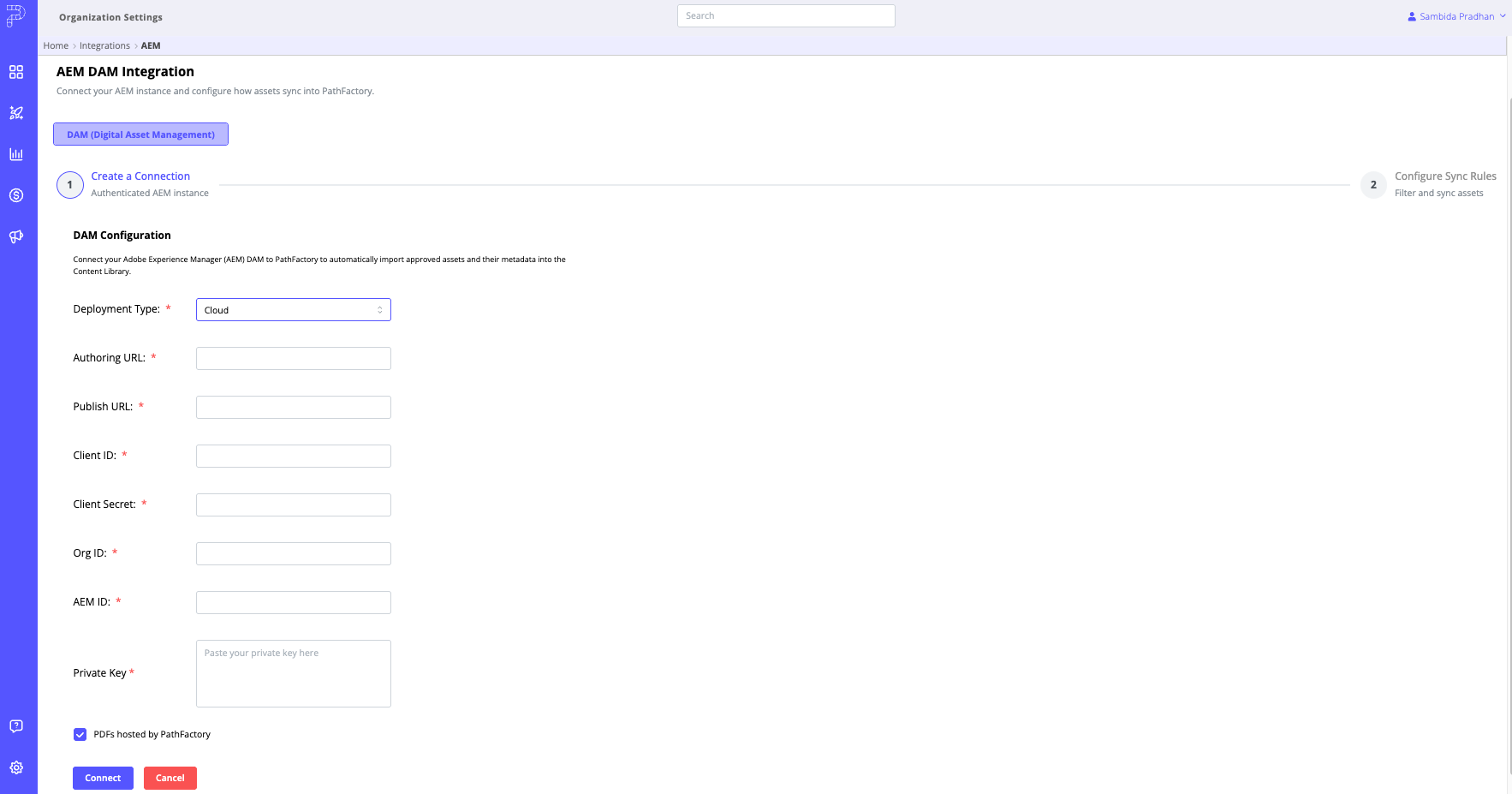
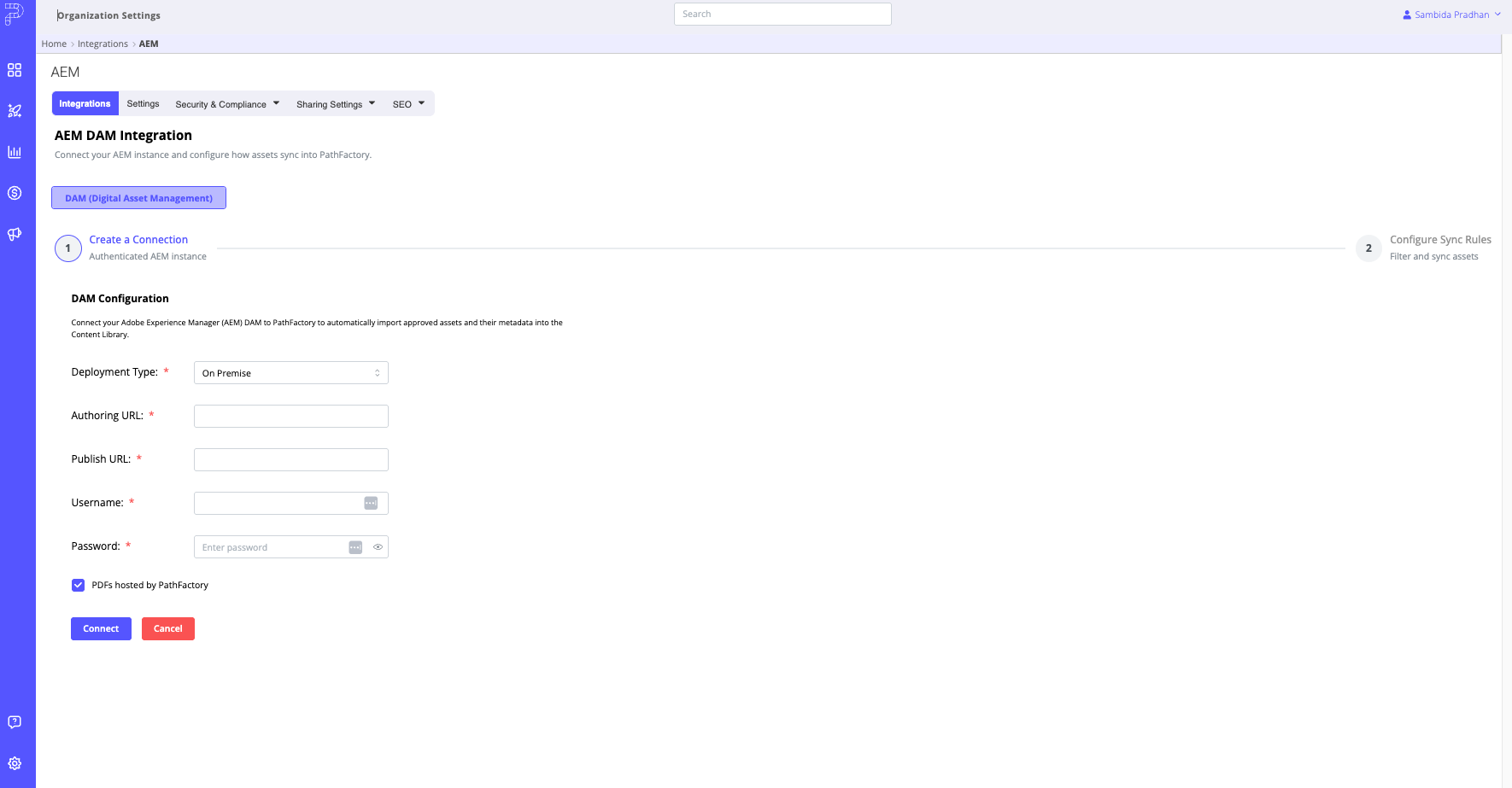
- Select your Package Type: Cloud or On-Premise.
- Enter your AEM connection credentials based on your deployment type.
For Cloud: Enter your AEM host URL, Client ID, and Client Secret.
For On-Premise: Enter your AEM host URL, username, and password.
- Authorize the connection.
Once the connection is established successfully, you are automatically advanced to Step 2.
Step 2: Configure Sync Rules
After connecting, you configure the custom query filter that defines which assets PathFactory syncs from AEM. Sync will not run until this configuration is saved.
- On the Configure Sync Rules screen, review the PathFactory Default Sync Rules displayed as read-only reference blocks. These parameters are applied to every sync automatically your custom filter is appended to them.
- In the Custom Query Filter block, enter Query Builder parameters to define which assets are synced. You can filter by tag, content category, folder path, asset status, or other QueryBuilder-supported parameters.
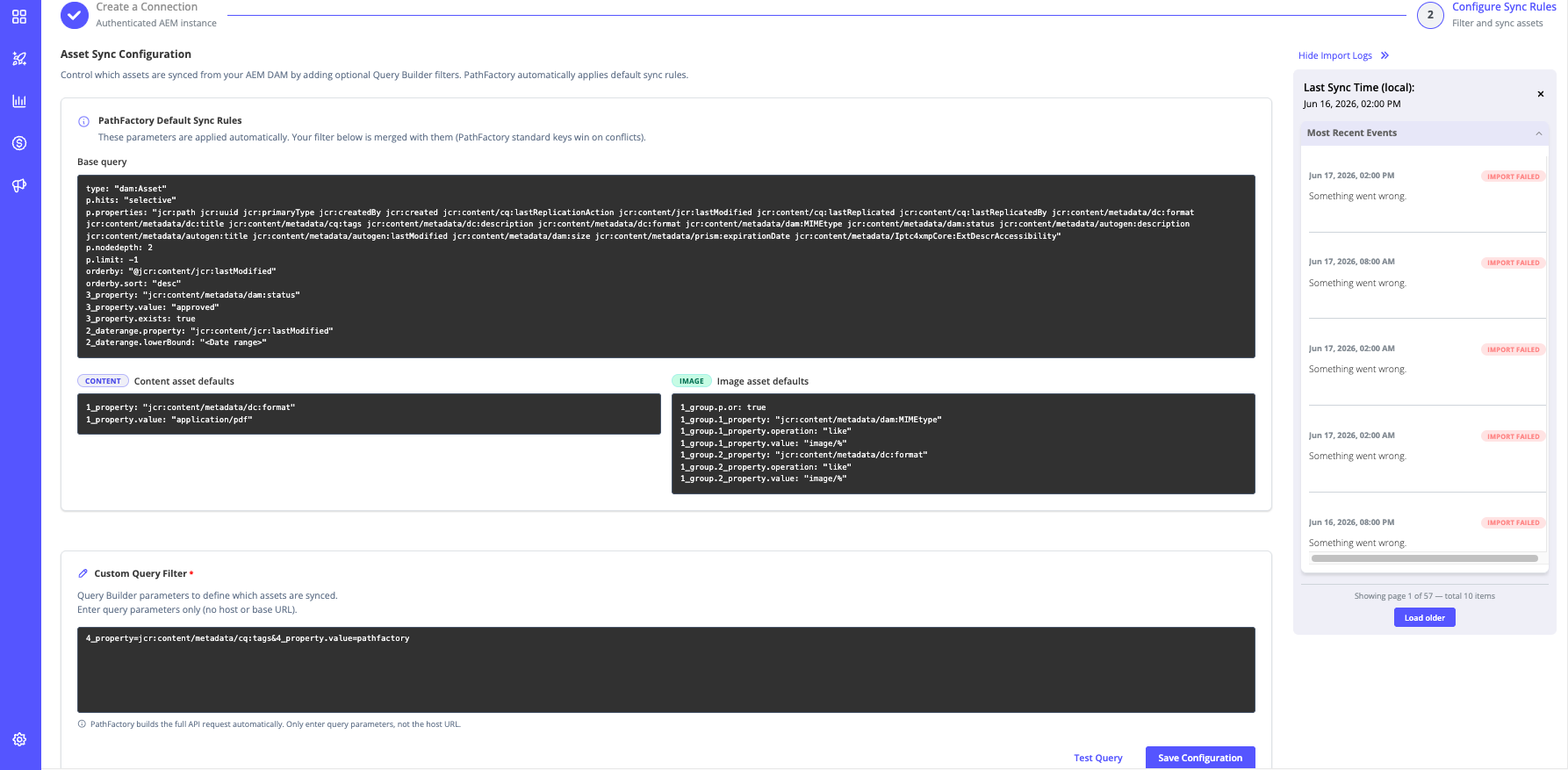
- Click Test Query to validate your filter against your live AEM connection. PathFactory confirms whether the query is valid and whether matching assets were found, before anything is saved.
- Click Save Configuration when your filter is ready.
When the configuration is saved for the first time, PathFactory runs an initial sync immediately. Subsequent imports and updates continue on the scheduled cycle.
Prepare Assets in AEM for Sync
For assets to sync from AEM into PathFactory, they must be published and approved in AEM, and they must meet PathFactory’s default sync criteria and the custom Query Builder filters configured by the administrator in Step 2.
Content assets (such as PDFs) are imported into the PathFactory Content Library.
Image assets are imported into the PathFactory Image Library. Image assets require an ImageType tag in AEM to tell PathFactory where the asset belongs. Accepted values are: Content Image, Hero Image, Icon, and Logo. Image assets without this tag will not sync to the Image Library.
Optional metadata tags can be applied in AEM to enrich assets in PathFactory. The following tag categories map directly to PathFactory tag categories: Industry, Persona, Region, and Campaign. If a matching tag category does not already exist in PathFactory, it is created automatically during import.
Assets that do not meet PathFactory’s default sync criteria or the custom query filters configured by your administrator will not be imported.
How Assets Are Synced
PathFactory uses the AEM QueryBuilder API to discover and retrieve assets from AEM DAM. Two automated background jobs keep your PathFactory Content Library aligned with AEM.
The Update Sync Job runs every hour. It checks for assets that are new or have been modified since the last sync, based on last-modified date. Only changed assets are retrieved, PathFactory does not re-import assets that have not changed. When an asset in AEM is updated, the corresponding asset in PathFactory is updated to reflect the latest metadata, tags, and asset version.
The Deletion Sync Job runs every 24 hours. It checks for assets that have been removed from AEM and moves them to the Archive in PathFactory rather than permanently deleting them. This protects any existing PathFactory experiences or content links that reference the asset.
Each PathFactory asset is linked to its AEM counterpart through a unique AEM UUID. When an asset is imported through the AEM sync, its UUID is automatically populated. The AEM UUID field is editable in PathFactory which allows you to manually map existing PathFactory assets to their AEM counterparts ahead of the first sync to prevent duplicates, or to update UUID mappings at any point after the integration is live. When sync runs, PathFactory uses the UUID to match those assets to their AEM counterparts and treats them the same as any asset brought in through the integration.
PathFactory also maps the Published Date from AEM to the Published Date field in the PathFactory Content Library, keeping content dates aligned across platforms.
Monitor Sync Activity
You can review integration activity through the Sync Logs in the AEM DAM integration settings. Logs capture successful asset imports, failed imports, and any errors encountered during a sync cycle. This gives administrators visibility into sync health and a clear starting point for troubleshooting if expected assets are not appearing in the Content Library.
Things to Know
- Sync begins only after the administrator configures the custom query filter and saves the configuration in Step 2. Assets will not sync if the configuration has not been saved.
- Assets must be published and approved in AEM and must meet PathFactory’s default sync criteria and your configured custom query filters before they sync to PathFactory.
- Image assets require the ImageType tag in AEM. Image assets without this tag will not be imported to the Image Library.
- Deleted assets in AEM are moved to the Archive in PathFactory, not permanently deleted, to protect existing experiences and content links.
- The AEM UUID field is editable in PathFactory allowing you to map or update asset associations as needed.
- Tags from AEM map to PathFactory tag categories. If a matching category does not yet exist in PathFactory, it is created automatically during import.
- PathFactory maps the Published Date from AEM to the Published Date field in the PathFactory Content Library.
FAQs
Who can set up the AEM DAM integration?
A PathFactory organization administrator must configure the integration in Organization Settings. Once the integration is active and the configuration is saved, assets sync automatically without additional action from content teams.
Does PathFactory support both AEM Cloud and AEM On-Premise?
Yes. The integration supports both deployment types. AEM Cloud authenticates using a Client ID and Client Secret. AEM On-Premise uses a username and password. You select the package type during Step 1 of setup.
How often does PathFactory sync assets from AEM?
PathFactory runs two automated sync jobs. The update job runs every hour and retrieves assets that are new or modified since the last sync. The deletion job runs every 24 hours and handles assets that have been removed from AEM. Only assets that have changed are processed during the update sync PathFactory does not re-import unchanged assets.
What is the AEM UUID and how is it used?
The AEM UUID is a unique identifier that links each PathFactory asset to its corresponding AEM source asset. When an asset is imported through the AEM sync, the UUID is automatically populated. You can also manually add or update the AEM UUID on any PathFactory asset at any time before the AEM connection is set up or after syncs have run. When sync runs, PathFactory uses the UUID to match those assets to their AEM counterparts, treating them the same as assets brought in through the integration and preventing duplicates.
What happens when an asset is updated in AEM?
When an asset is updated in AEM, whether the file, metadata, or tags have changed PathFactory reflects the update during the next hourly sync. The corresponding PathFactory asset is updated automatically.
What happens when an asset is deleted in AEM?
When an asset is removed from AEM, PathFactory moves it to the Archive during the next 24-hour deletion sync. The asset is not permanently deleted, so any existing PathFactory experiences or content links that reference it continue to function.
What happens if my custom query filter returns no matching assets?
When you click Test Query in Step 2, PathFactory displays a message indicating whether the query is valid and whether matching assets were found. If the query is valid but returns no matches, you can adjust your filter before saving. A valid query that currently matches no assets is still a valid configuration it simply means no assets in AEM meet the filter criteria at that time.
Can I update my custom query filter after the initial configuration?
Yes. You can return to the AEM DAM integration settings in Organization Settings at any time to update your custom query filter or connection details. Changes take effect on the next sync cycle after the updated configuration is saved.
Get Started
To get started, go to Organization Settings in PathFactory, open the Integrations section, and locate the AEM DAM integration.
If you are a PathFactory organization administrator, you can begin configuration immediately. If you need help planning your tagging convention in AEM, validating your custom query filter, or onboarding your team to the new workflow, contact your Customer Success Manager.
Views: 18